Upload a meeting transcript
Get a meeting into Launch OS by uploading its transcript, so it can be turned into a summary, to-dos, and first drafts.
Uploading a transcript is the quickest way to get a meeting into Launch OS — no integrations required. It's the right tool when you already have a transcript file in hand.
Before you start
You'll need a transcript saved as a text file: .txt, .md, .vtt, or .srt. Most meeting tools can export one.
Steps
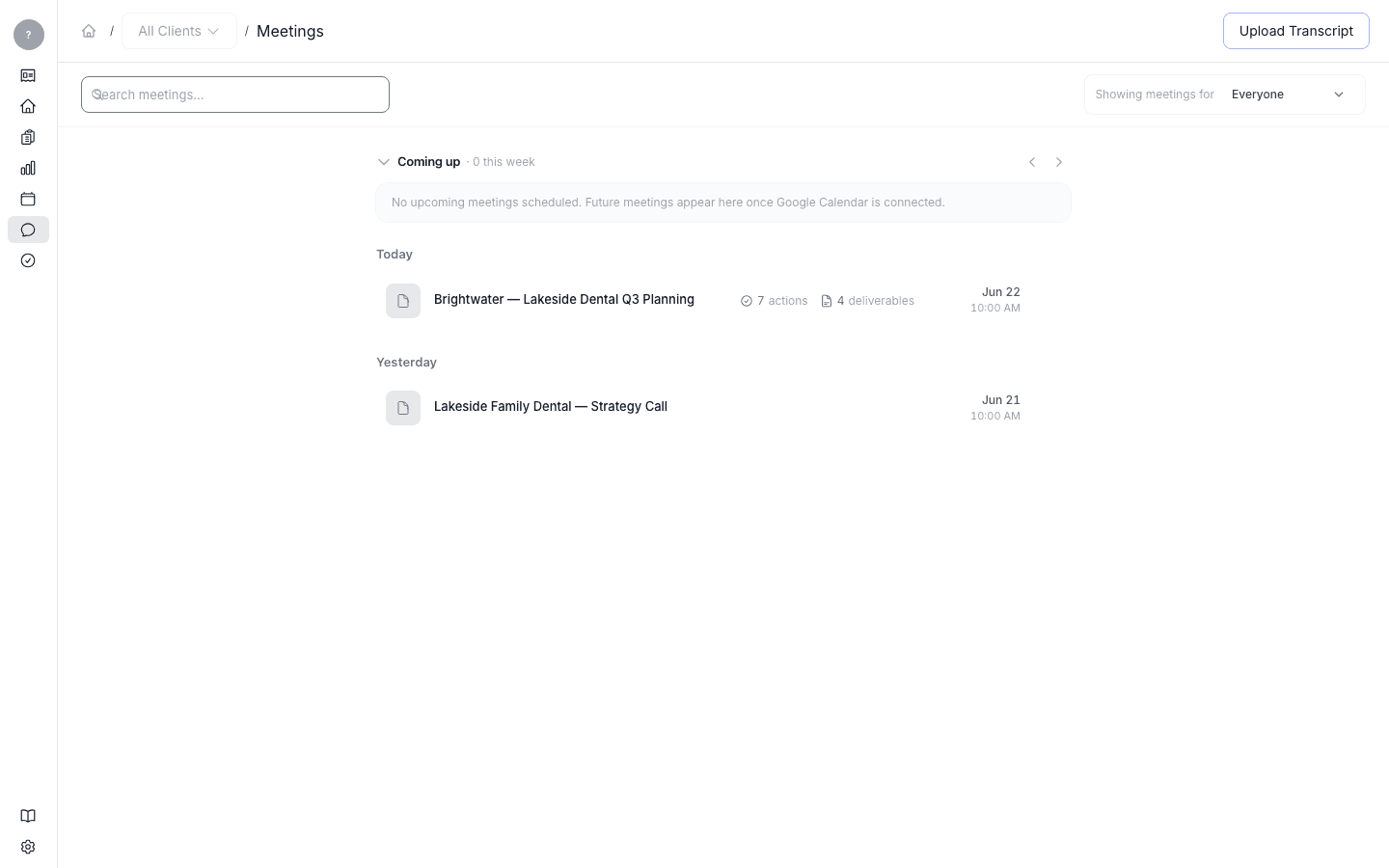
Choose the file and fill in the details
Pick your transcript file, then add a Title, the meeting Date and Start time, and use Assign to client to choose which client this meeting belongs to (or Internal meeting if it's not client work).
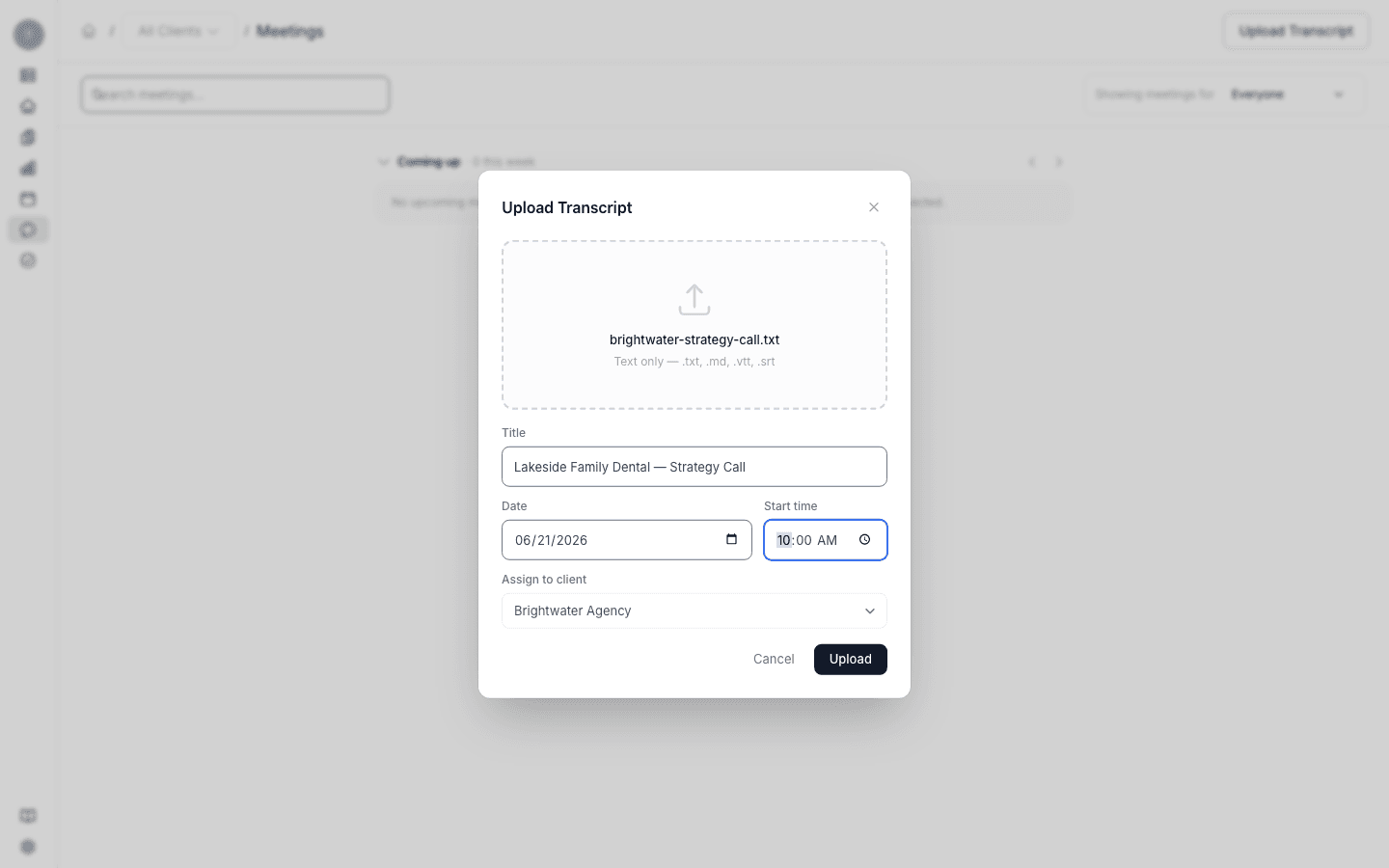
Upload
Click Upload. The meeting appears in your Meetings inbox right away.
What happens next
Launch OS processes the transcript in the background and turns it into a digest — a summary, the to-dos from the meeting, and a first draft for each one. When it's ready, open the meeting to read the digest.
To have meetings arrive automatically instead of uploading them by hand, set up Shadow (covered in its own guide).