Your first 15 minutes: sign in, find your apps, build your first page
The quickest path from signing in to a page of your own.
This guide walks you through your first visit. By the end, you'll have a page you can publish.
1. Sign in
- Go to app.launchos.com.
- Click Continue with Google. Or type your email and password, then click Sign In.
- If two-step sign-in is on for your account, type the code from your authenticator app.
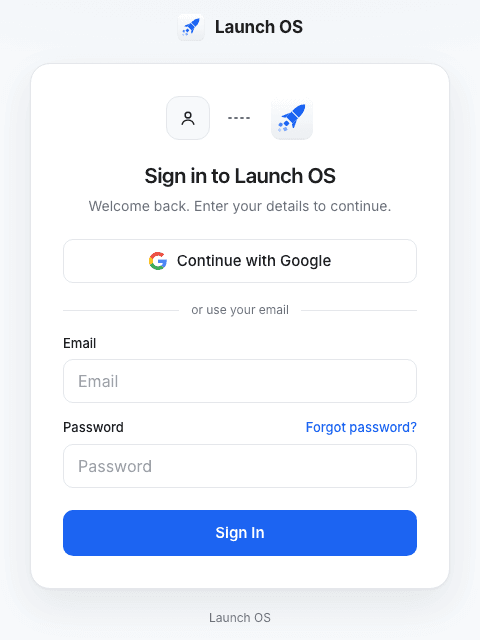
Forgot your password? Click Forgot password? above the password box. We email you a link to choose a new one.
Where you land depends on your apps. Most accounts open on Launch Pages. If you have Launch OS Agents, you land on its Home screen instead. The first time, it asks you to set up your account in six short steps. See From sign-in to your first drafts.
2. Find your apps
Your apps are the icons down the left side of the screen. You see one icon for each app you have. Hover over an icon to see its name, and click it to open the app.

Want an app you don't see? Click the rocket icon to open Launch Pad, the store inside Launch OS. Find the app and add it. See Launch Pad: find and add apps.
3. Build your first page
- Open Launch Pages from the left menu.
- Click + Create a Landing Page at the top right, then From a template.
- Click Use on a design you like.
- Type a name for your page and click OK. The page opens in the editor.
- Click any words or picture on the page to change them. Your changes save as you go.
The full steps, with pictures, are in Create a landing page.
Would you rather describe the page and have it built for you? Ask CoPilot.
4. Put it online
When the page looks right, click Publish at the top right of the editor. Launch OS puts the page online and shows its web address. Until you publish, only you can see it.
See Publish your page.
What's next
- Find your way around: the menus, search and help.
- Collect leads with a form, so visitors can sign up.
- Connect your domain, to put your page on your own web address.
Need help?
Email support@launchos.com.