Collect leads with a form
Use a sign-up form on your page, see who signed up, and send new leads to your email tool.
A form on your page turns visitors into leads. Each person who fills it in is saved as a contact in Launch OS. You can also send them on to the email tool you use, like Mailchimp or ActiveCampaign.
Start with a page that has a form
The easiest way to get a form is to start from a template that already has one.
- In Launch Pages, click + Create a Landing Page, then From a template.
- Look for templates marked Lead page. These have a sign-up form with name and email boxes.
- Click Use, name your page and click OK.
Change the form's headline and button words the same way you change any words on the page. See Edit your page.
Where your leads go
When someone fills in the form on your live page, Launch OS saves them as a contact. It marks each contact with the page they came from.
To see the people who signed up on one page, see See the leads from a page.
Send leads to your email tool
First, connect your email tool to Launch OS in Settings > Integrations. Then:
- Open your page in the editor.
- Click the gear button at the top.
- Click the Connections tab.
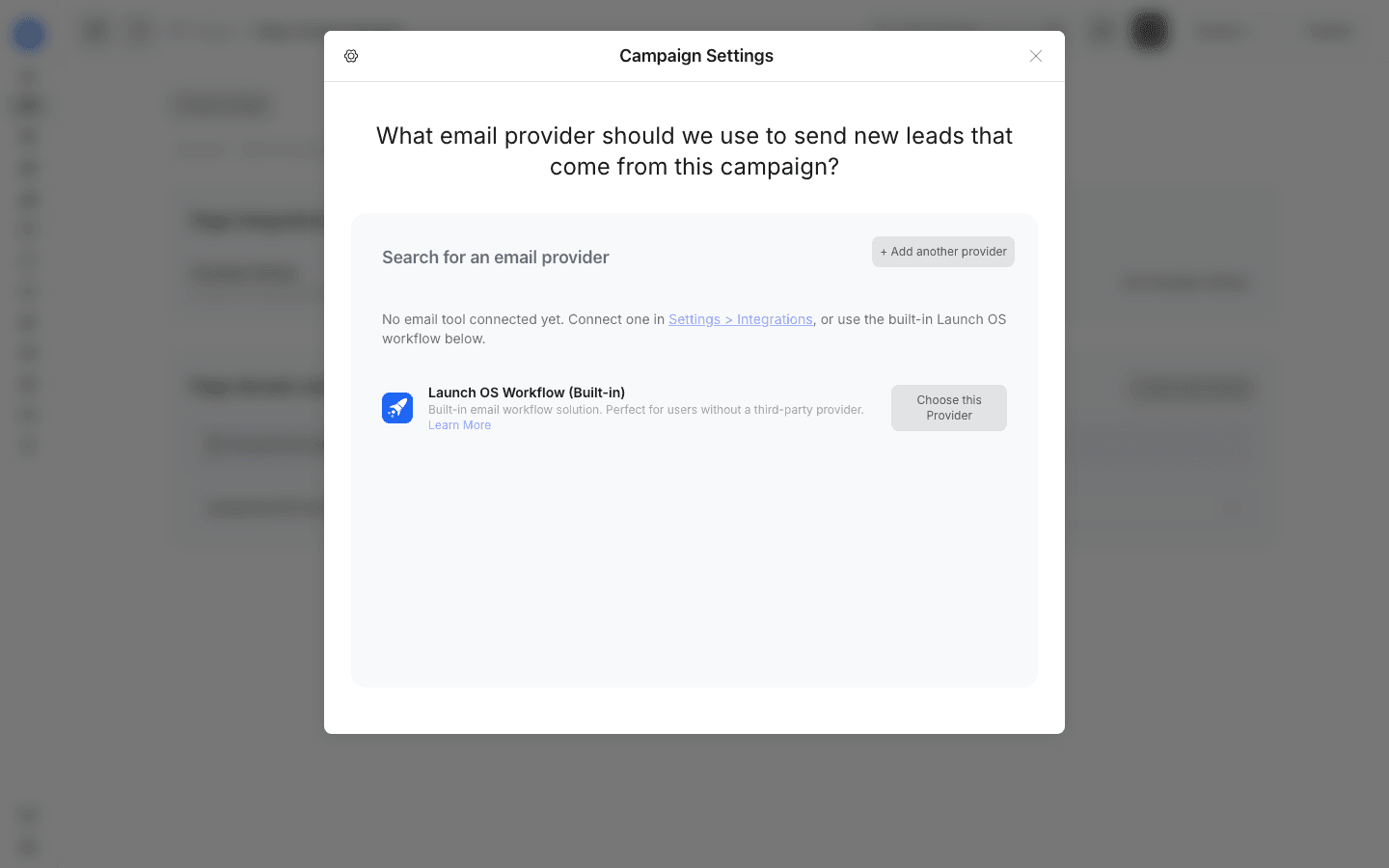
- Next to Campaign Settings, click Set Campaign Settings.
- Find your email tool in the list and click Choose this Provider.
No email tool yet? Pick Launch OS Workflow (Built-in) to use the email follow-up built into Launch OS.
Test it
Publish your page, open it, and fill in the form with your own name and email. Then check that you show up as a lead. See Publish your page.
Need help?
Email support@launchos.com.