Publish your page
Put your page online, find its web address, and know what "published" means.
Publishing puts your page on the internet, where anyone with the link can see it. Until you publish, your page is a draft that only you can see in the editor.
Publish
- Open your page in the editor.
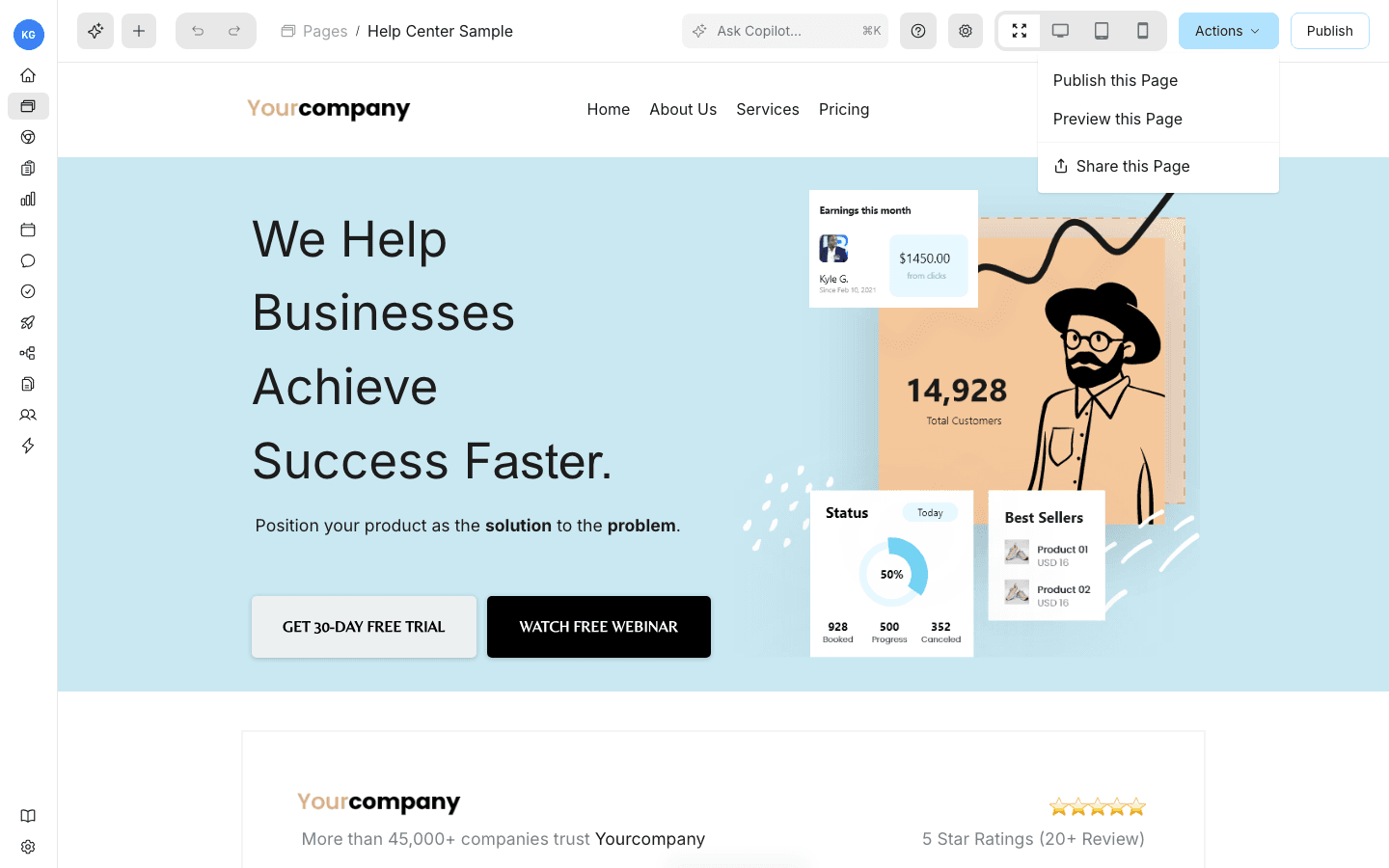
- Click Publish at the top right. (You can also click Actions, then Publish this Page.)
- A window says Your Page is Publishing.... This can take up to 30 seconds.
- When it's done, the window shows your page's web address. Click the arrow next to it to open your live page.
What "published" means
- Your live page is a copy. Publishing copies your page as it is right now. Changes you make after that save in the editor, but visitors don't see them yet.
- Publish again after every change. Each time you click Publish, the live page is replaced with your latest version.
- Settings need a publish too. A new title, description, tracking code, CSS or web address only reaches the live page after you publish.
Find your page's web address
- In the editor, click the gear button at the top.
- On the General tab, look under Share this Page. Your Link for Sharing is your page's web address.
- Click the copy button at the end of the box to copy it.
To change the last part of the address, click Change URL (Slug), type the new ending, and click OK. Then publish again so the new address works.
Use your own domain
Every page gets a free Launch OS web address. To use your own, like offer.yourbusiness.com:
- Connect your domain first. See Connect your own domain.
- In the editor, click the gear button, then the Connections tab.
- Under Page domain name, choose your domain.
- Publish again.
Need help?
Email support@launchos.com.