Edit your page
Change words and styles, move and copy parts of your page, undo a mistake, and know your work is saved.
The page editor shows your page the way visitors will see it. You click a part of the page to work on it. This guide shows the moves you'll use most.
Change the words
- Double-click the words you want to change.
- Type your new words. A small bar appears above the text with bold, italic, underline, lists and links.
- Click somewhere else on the page when you're done.
Pick a part of the page
Click once on any part of the page to pick it. A colored label shows what you picked, like TEXT, ROW or HEADER.
The first click often picks the bigger box around what you wanted. Click again to pick the part inside it.
When you pick a part, its settings open on the right: colors, size, spacing and alignment. Click a heading like Background or Position & Padding to open it. Click » to hide the settings and see more of your page.
Move, copy or delete a part
- Pick the part.
- Click the small arrow next to its label.
- Choose what to do:
- Move Up or Move Down to change its place on the page.
- Duplicate to make a copy right below it.
- Cut or Copy to move it somewhere else.
- Delete to take it off the page.
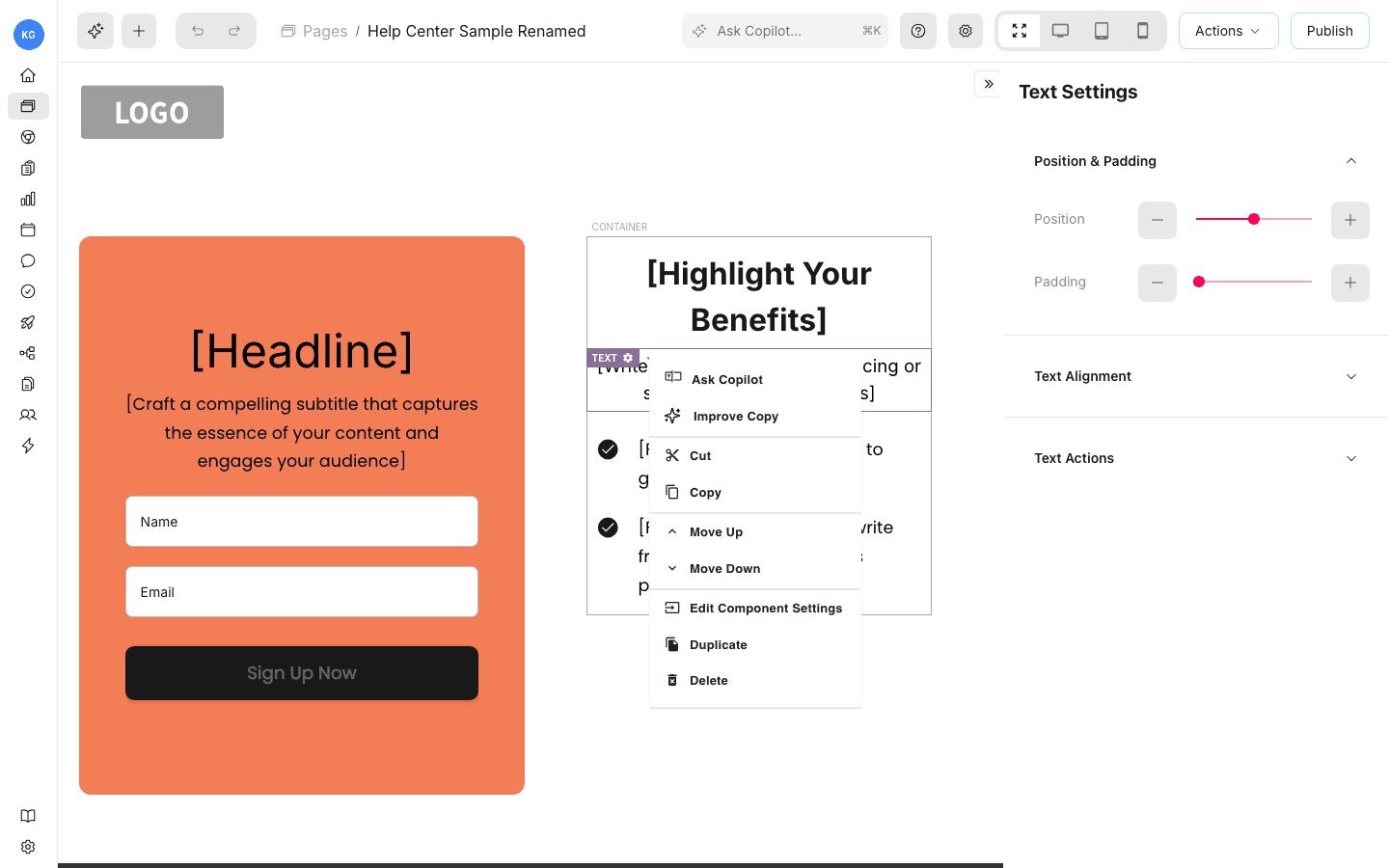
Ask CoPilot to change a part
- Right-click a headline or text. For any other part, pick it and click the small arrow next to its label.
- Choose Ask Copilot and type what you want, like "make this headline about our spring sale." Or choose Improve Copy to get new words for a headline or text.
CoPilot makes the change on your page. If you don't like it, undo it (see below).
If CoPilot can't be reached, the editor says "Couldn't reach CoPilot. Try again in a minute." Your page stays as it was.
Undo a mistake
Click the curved arrows at the top left of the editor. The left arrow undoes your last change. The right arrow puts it back.
Your work saves by itself
You don't need a save button. Launch OS saves each change as you make it. If you close the page and open it again, your changes are still there.
Saving is not the same as publishing. Visitors see your changes only after you click Publish. See Publish your page.
Change the whole design
To start over with a different template:
- Click the gear button at the top of the editor.
- On the General tab, find Page Template and click Choose Template.
- Click the template you want, then click OK to confirm.
This replaces everything on your page, and you can't undo it.
Need help?
Email support@launchos.com.