Launch Pages: create a landing page
How to start a landing page from a template or a blank page, edit it, and put it online.
You can have a landing page ready in a few minutes. Start from one of the ready-made designs, or from a blank page. Change the words and pictures, then put it online.
Start a page
- Open Launch Pages from the left menu.
- Click + Create a Landing Page at the top right.
- Click From a template.
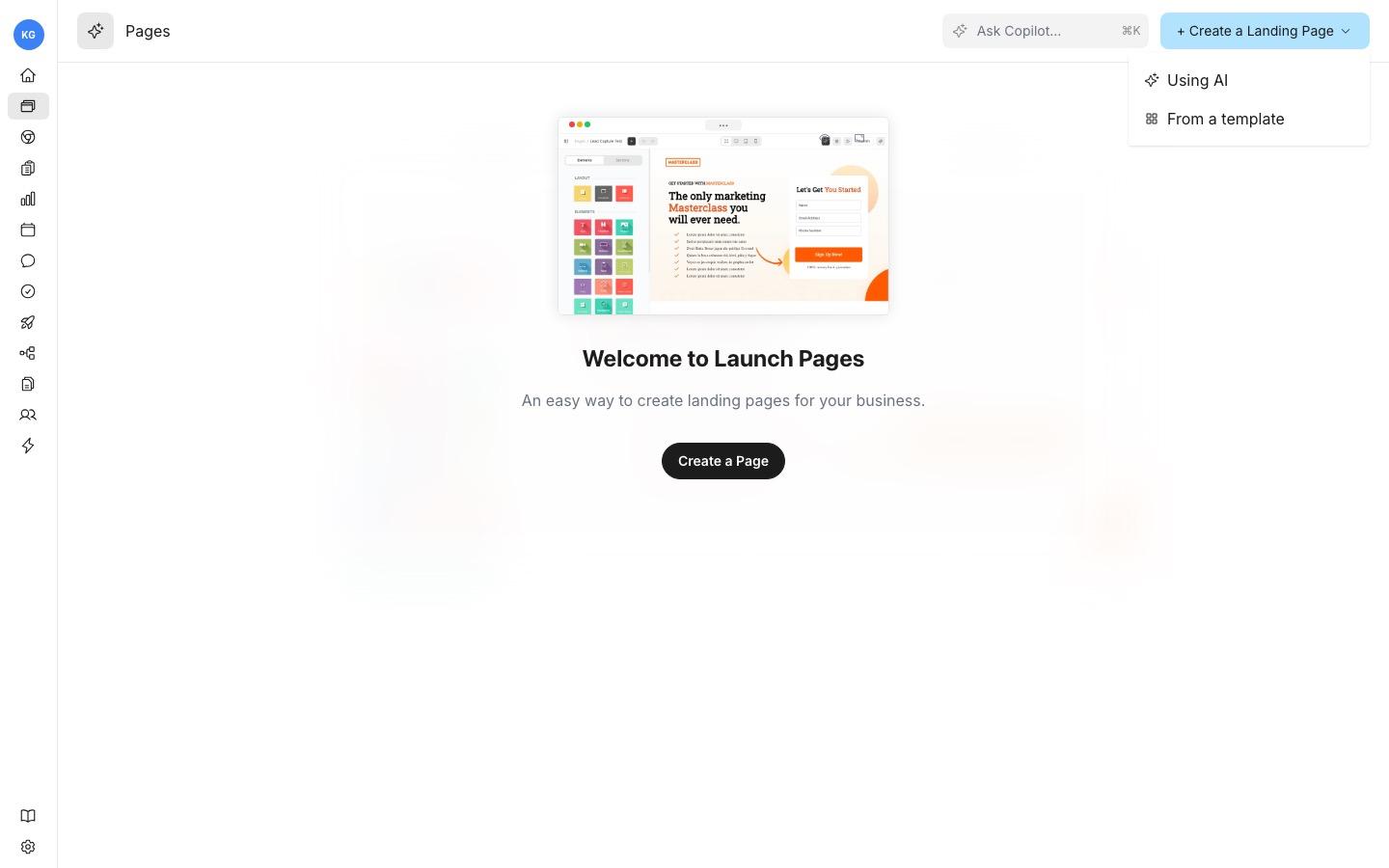
The first time you open Launch Pages, a short welcome tour shows. Click the arrows to read it, or the × to close it.
Pick a template
The templates list shows every page design that comes free with Launch Pages. Each card shows the whole page and what kind of page it is, like a sales page, a lead page or a thank-you page.
- Hover over a template, or click Preview to see it full size.
- Click Use on the one you like.
- Type a name for your page, then click OK. The page opens in the editor, ready for your words.
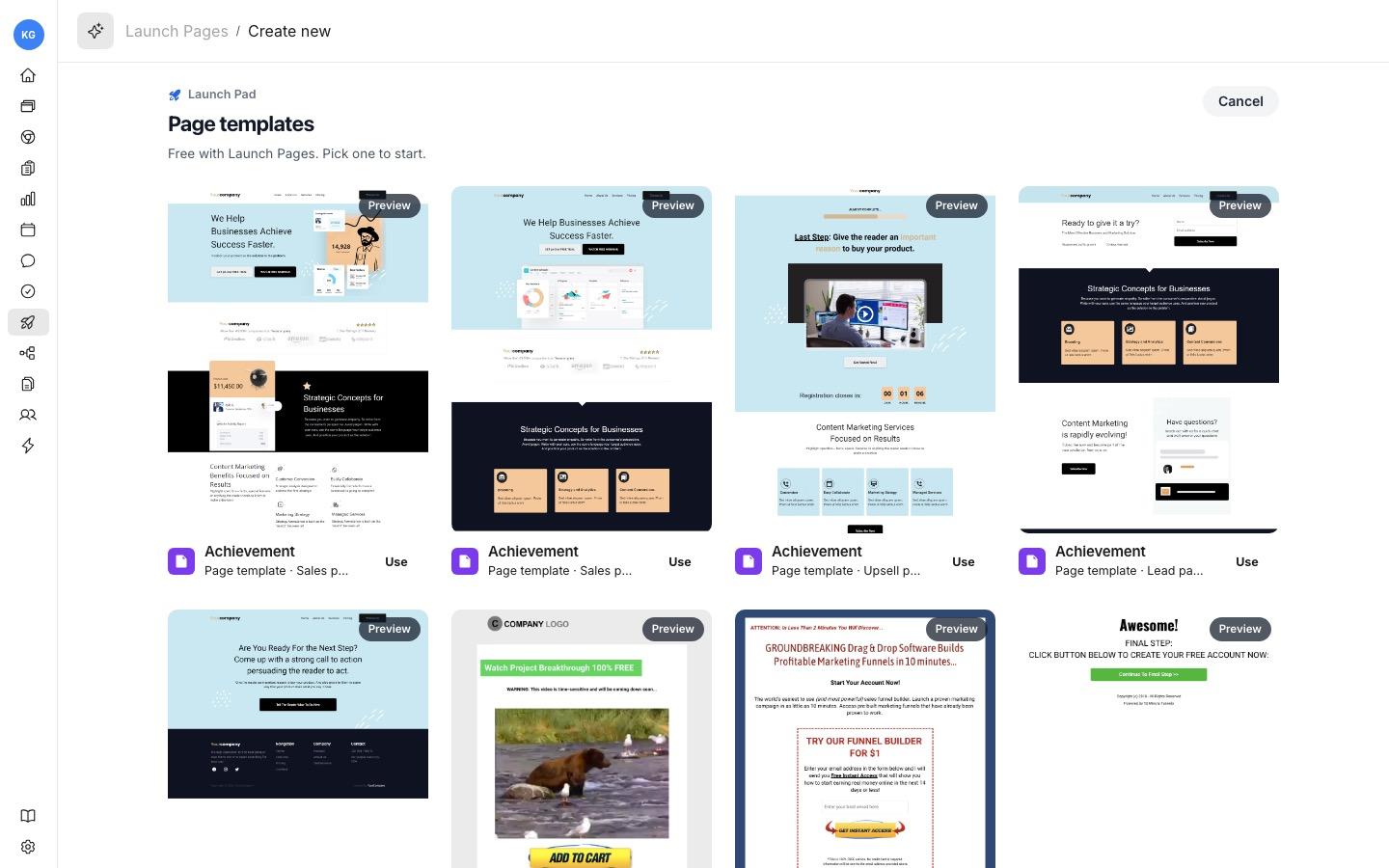
Changed your mind? Click Cancel at the top right to go back.
Start from a blank page
Want to build from nothing? Find the template called Blank Page in the list and click Use. Name it and click OK. You get an empty page.
Tip: if you want visitors to sign up, pick a template marked Lead page. It already has a sign-up form. See Collect leads with a form.
Edit the page
Click any words or picture on the page to change them. Your changes save as you go. See Edit your page for the details.
Using an HTML block for your own code, like a chat widget or a tracking tag? Any <script> in it runs on your live page, not in the editor. Publish the page and open its web address to check it works.
Put it online
When the page looks right, click Publish. Launch OS puts the page online and shows its web address. See Publish your page.
Want the page on your own web address, like offer.yourbusiness.com? See Connect your own domain. The steps are the same for a page and a funnel.
Need help?
Email support@launchos.com.