Manage your pages
Find, open, rename and delete your landing pages.
All your landing pages are in one list. From there you can open any page, and from a page's settings you can rename it or delete it.
See all your pages
Open Launch Pages from the left menu. Each card shows a page's name, when it was last changed, and whether it's Published (live on the internet) or a Draft. A published page's card also shows a small picture of the live page. Click a card to open that page in the editor.
If a page you published a while ago says Draft, publish it once more. The card shows Published from then on.
The list doesn't show yet whether a page is live. To check, open the page's web address. See Publish your page.
Rename a page
- Open the page.
- Click the gear button at the top.
- On the General tab, click in Page Name and type the new name.
- Click anywhere outside the box. The new name saves by itself.
The name is only for you. It doesn't change the page's web address.
Delete a page
- Open the page.
- Click the gear button at the top.
- On the General tab, scroll down to Delete this page.
- Tick Yes, delete this page.
- Click Delete Page, then OK.
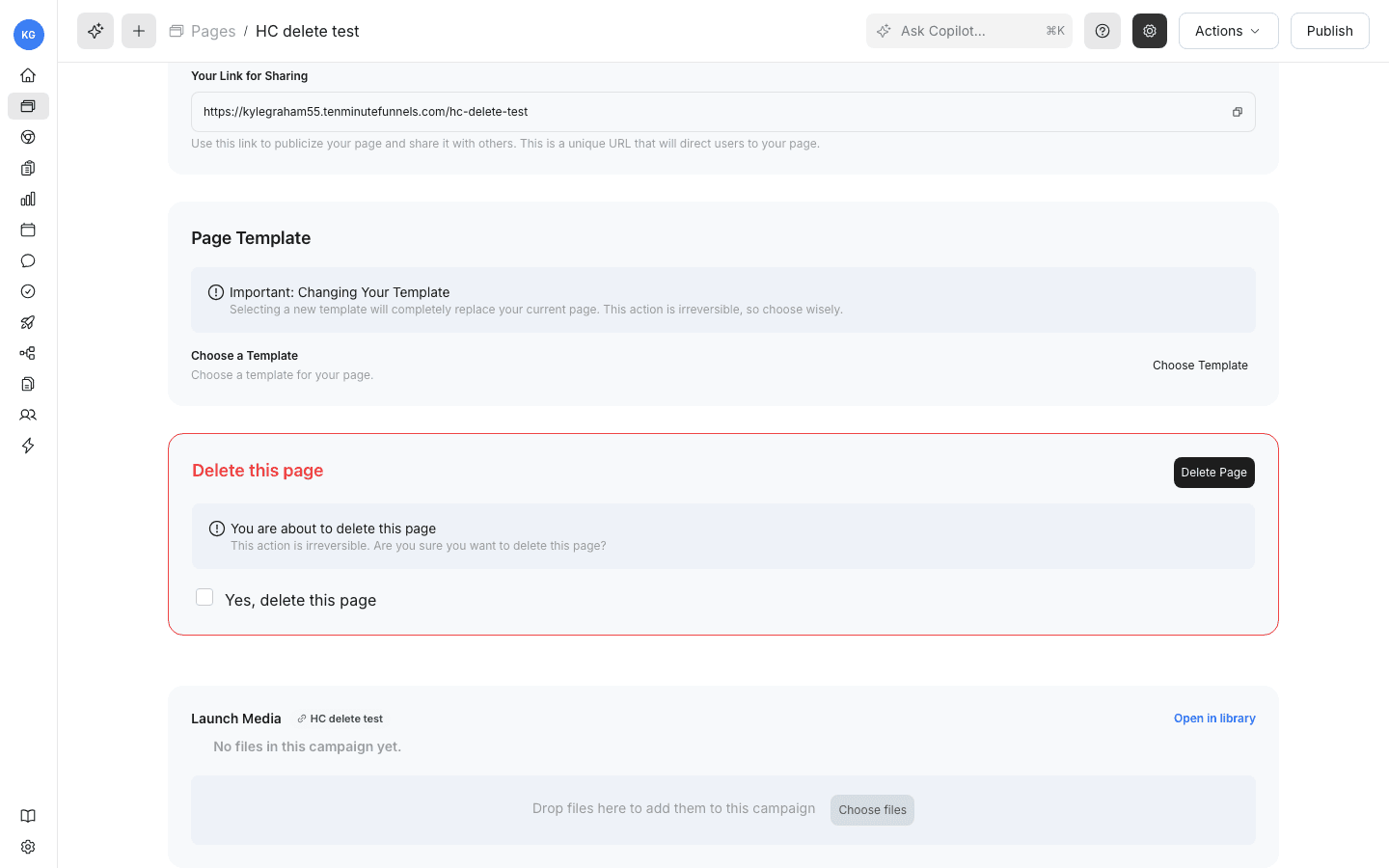
You can't get a deleted page back.
Need help?
Email support@launchos.com.