Find your way around: the left menu, the top bar, search, and the ? help button
Where everything is on the Launch OS screen, and how to find anything fast.
Every Launch OS screen has the same frame: a menu down the left side and a bar across the top. Once you know these, you can find anything.
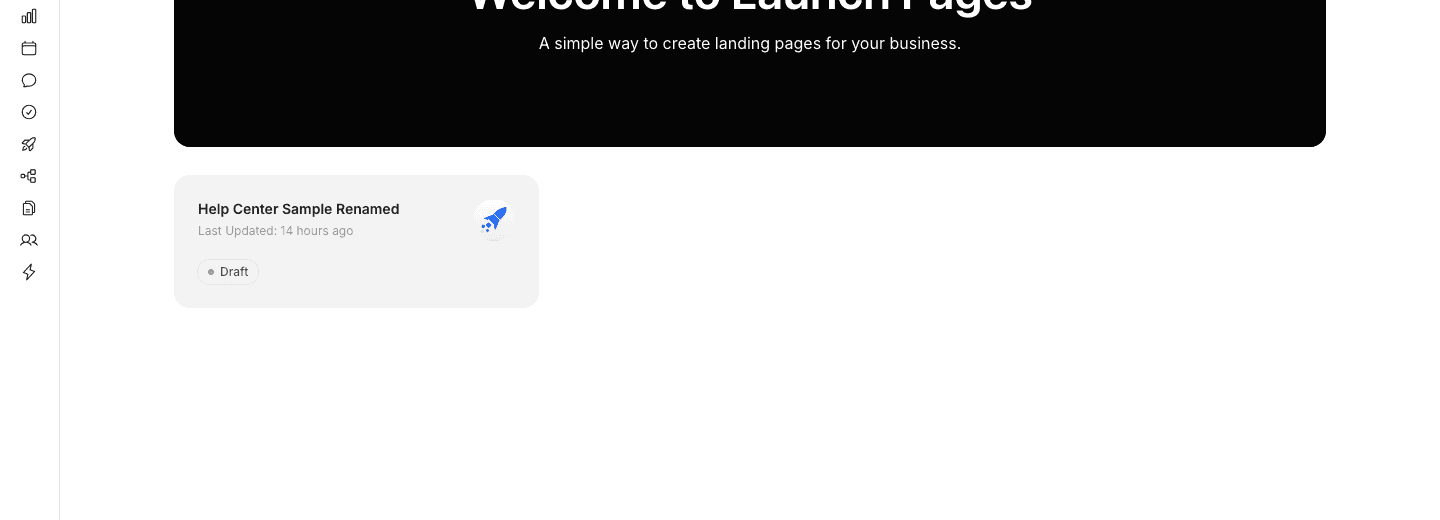
The left menu
- Your initials, at the top. Click them for Settings, Documentation (these guides), Support and Sign Out.
- Your apps. One icon for each app you have. Hover over an icon to see its name. The icon of the app you're in is shaded.
- The rocket opens Launch Pad, where you find and add apps and templates.
- At the bottom: the Help Center (the ? icon). If you have Launch OS Agents, you see its Knowledge Base and Settings (the gear) here instead.
The top bar
From left to right:
- The sparkle button opens CoPilot, the assistant built into Launch OS. See Ask CoPilot for help.
- Where you are. The name of the screen you're on. On some screens it shows the path, like Launch Pages / My page. Click an earlier name to go back to it.
- The ? button opens the help for the screen you're on, in a new tab. On a Launch Pages screen it opens the Launch Pages guides, and so on.
- The main button for the screen, like + Create a Landing Page or + Create a Site.
Search everything with ⌘K
Press ⌘K on a Mac, or Ctrl+K on Windows, from any screen. A search box opens.
- Type a few words, like "domain" or the name of one of your pages.
- Results show as you type, grouped by where they come from: your own work (site pages, Launch Pages pages, funnels, contacts, files in Launch Media, and meetings and to-dos in Launch OS Agents), apps and templates from Launch Pad, and articles from this Help Center.
- Click a result to open it. Help Center articles open in a new tab.
Press Esc to close the box.
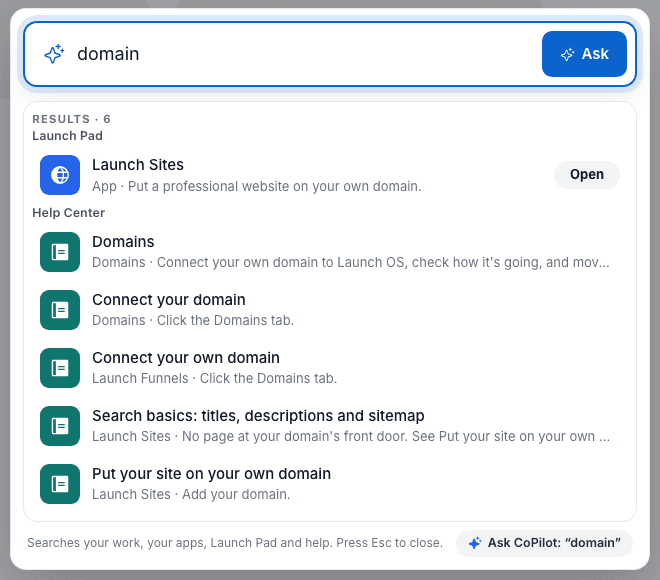
Can't find it? Click Ask CoPilot at the bottom of the box. CoPilot opens with what you typed.
Some screens also show an Ask Copilot… ⌘K box in the top bar. Clicking it opens the same search box.
Get help
- The ? button in the top bar opens the guide for the screen you're on.
- ⌘K finds Help Center articles from anywhere in the app.
- Your initials > Support opens How to get help, with our email address.
Need help?
Email support@launchos.com.