From sign-in to your first drafts
Sign in, set up your workspace, and turn your first meeting into a summary, a task list, and first-draft marketing deliverables — in about 20 minutes.
This is the first thing to do in Launch OS Agents. By the end you'll have set up your workspace and watched a real meeting turn into a summary, a list of to-dos, and first-draft deliverables written in your voice — the core of how everything else works.
It takes about 20 minutes, and most of that is the one-time setup you'll never repeat.
Before you start
You'll need a Launch OS account with Agents access. If you can reach app.launchos.com and sign in, you're set.
Step 1 — Sign in
Go to app.launchos.com, enter your email and password, and click Sign In.
Step 2 — Land on your Home
The first thing you'll see is Home — the screen that answers "what needs me right now?" On a brand-new account it's empty, and that's expected: no meetings, nothing to review, no to-dos, no campaigns yet. You're about to fill it.
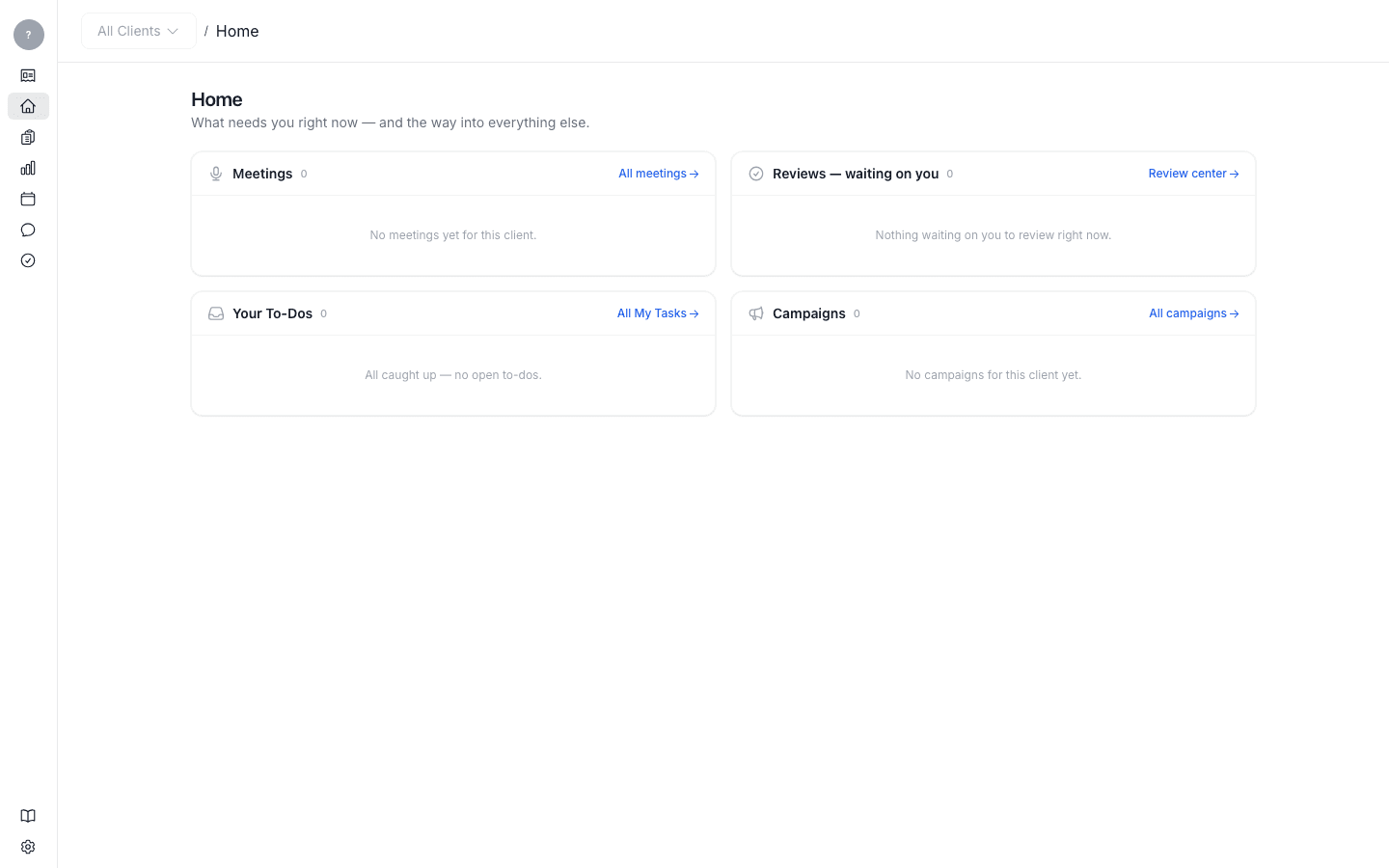
Take ten seconds to notice the four areas — Meetings, Reviews waiting on you, Your To-Dos, and Campaigns. This is where your work will land once your first meeting is processed.
Step 3 — Set up your workspace
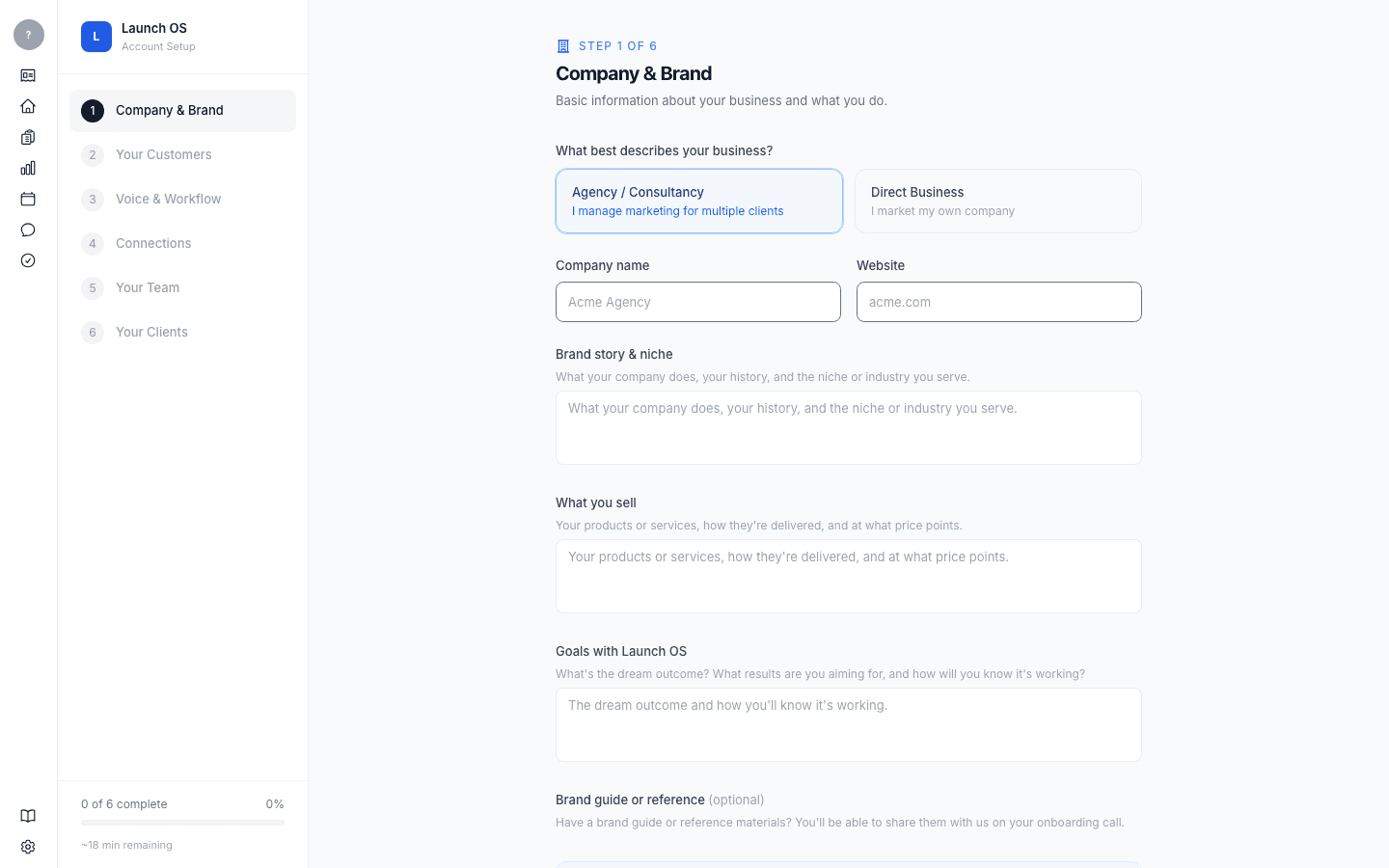
Before Launch OS can write in your voice, it needs to know a few things about your agency, your clients, and how you sound. That's the setup wizard — six short steps, mostly a few sentences each. Write in plain language; the system expands your answers into proper foundation documents for you.
You can leave and come back — every step has Save & continue later. The progress bar on the left shows where you are and roughly how long is left.
Company & Brand
Pick Agency / Consultancy as your business type, then add your company name, website, and a few sentences each on your brand and niche, what you sell, and your goals with Launch OS.
Your Customers
Describe your ideal customer, your best success story ("a customer you'd want ten more of"), and what they want, struggle with, and believe. In your own words is fine.
Voice & Workflow
Describe how your brand sounds, and how an idea goes live at your agency. The more you say here, the closer the first drafts will sound to you from day one.
Connections
Pick the tools you use. Launch OS applies sensible defaults — you can fine-tune any of this later in Settings.
Your Team
Add the people who'll use Launch OS. Each gets their own login. Admins manage settings and approve work; Team Members can view, create, and route work.
Your Clients
Add the clients you'll run through Launch OS — just a name, website, and industry to start. Then click Finish setup.
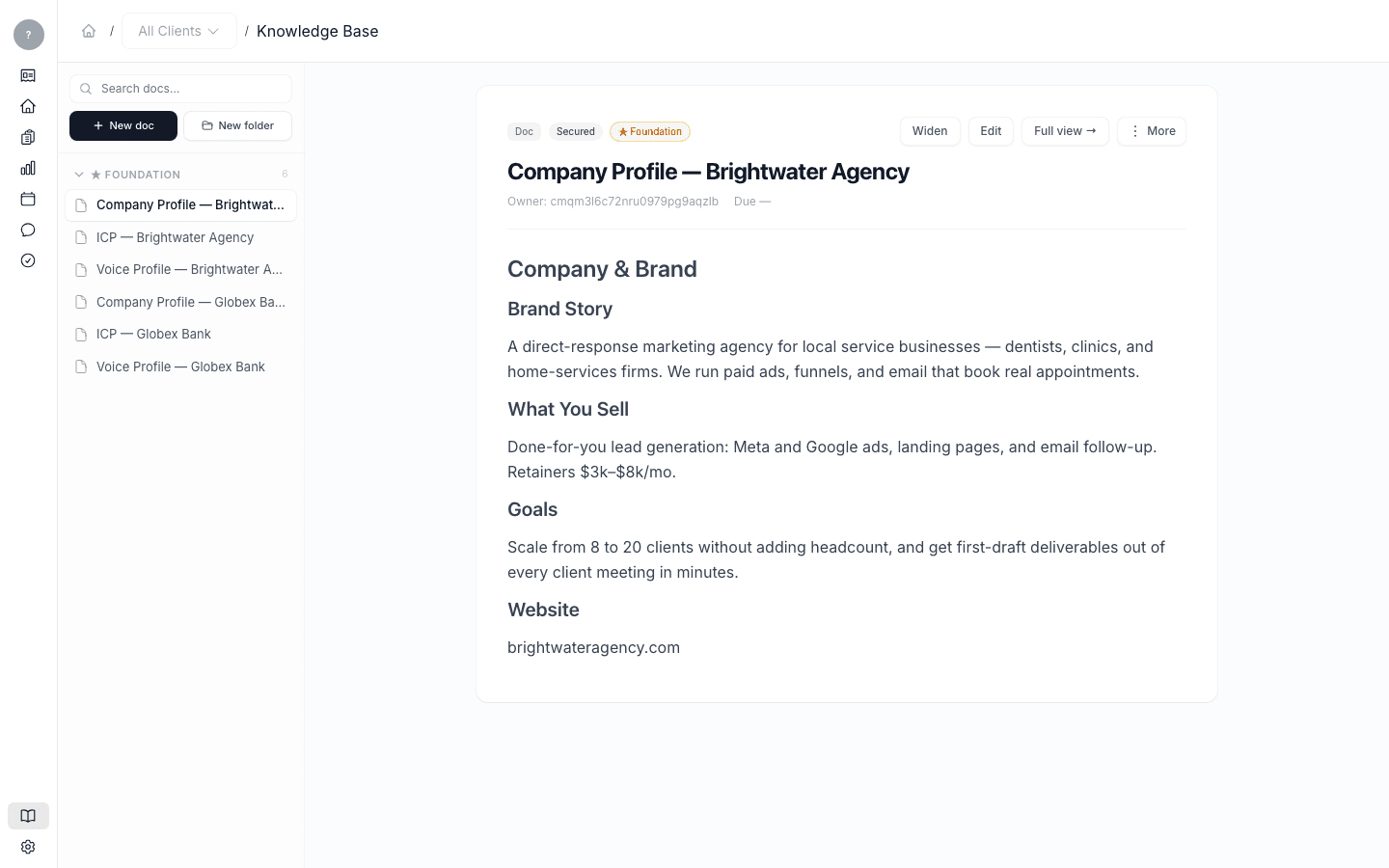
When you finish, you land back on Home, and Launch OS has created your first foundation documents — a company profile, an ideal-customer profile, and a voice profile — from what you just told it. You can see and edit them anytime in the Knowledge Base.
Step 4 — Get your first meeting in
Launch OS works from your meetings. The fastest way to see it work right now is to upload a transcript you already have.
Open Meetings in the left sidebar and click Upload Transcript. In the dialog, choose your transcript file, give the meeting a title, pick which client it's for, and click Upload.
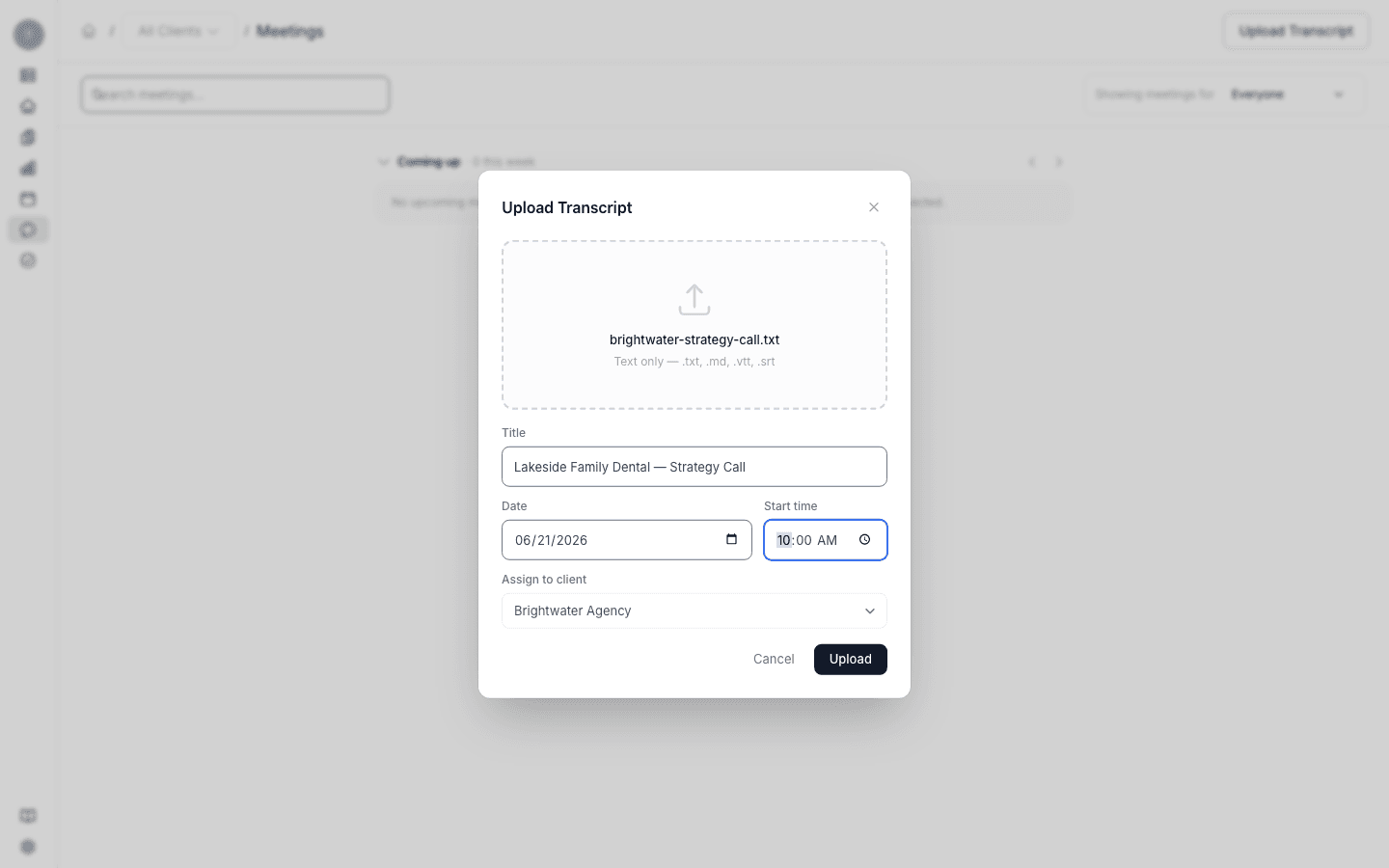
Transcripts are text files — .txt, .md, .vtt, or .srt. If your meeting tool exports a transcript, that's the file you want.
Your meeting appears in the inbox right away.
Step 5 — Watch it become real work
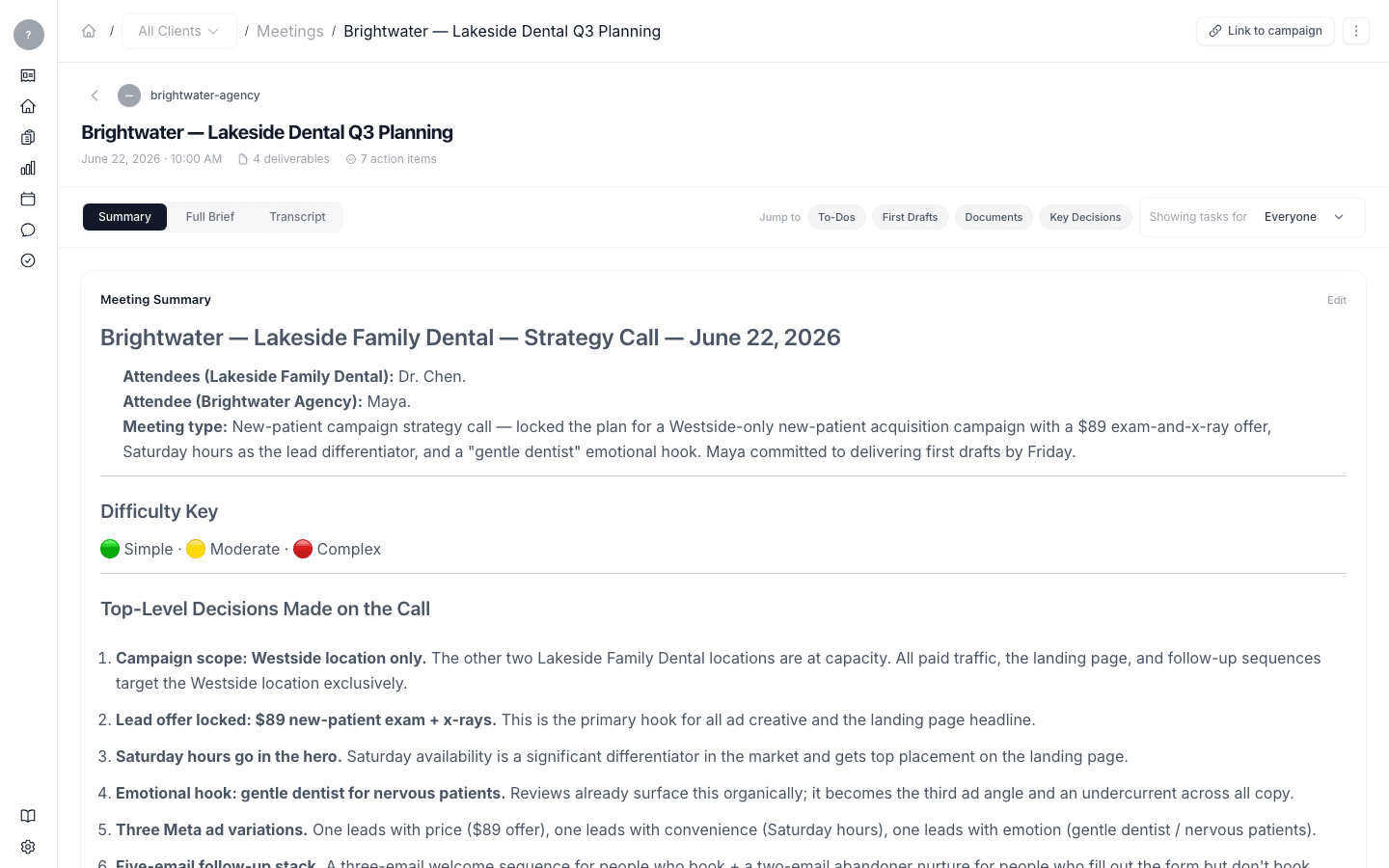
This is the part that matters. Launch OS reads the transcript — along with everything already in your Knowledge Base — and produces a digest: a plain-English summary, the to-dos from the meeting, and a first draft for each one, written in your voice.
It works in the background. When it's ready, open the meeting and click View digest. At the top you'll see the summary and any key decisions. Below that, the To-Dos list — each with an owner and a status — and next to each, a "→" link that opens the first draft written for it.
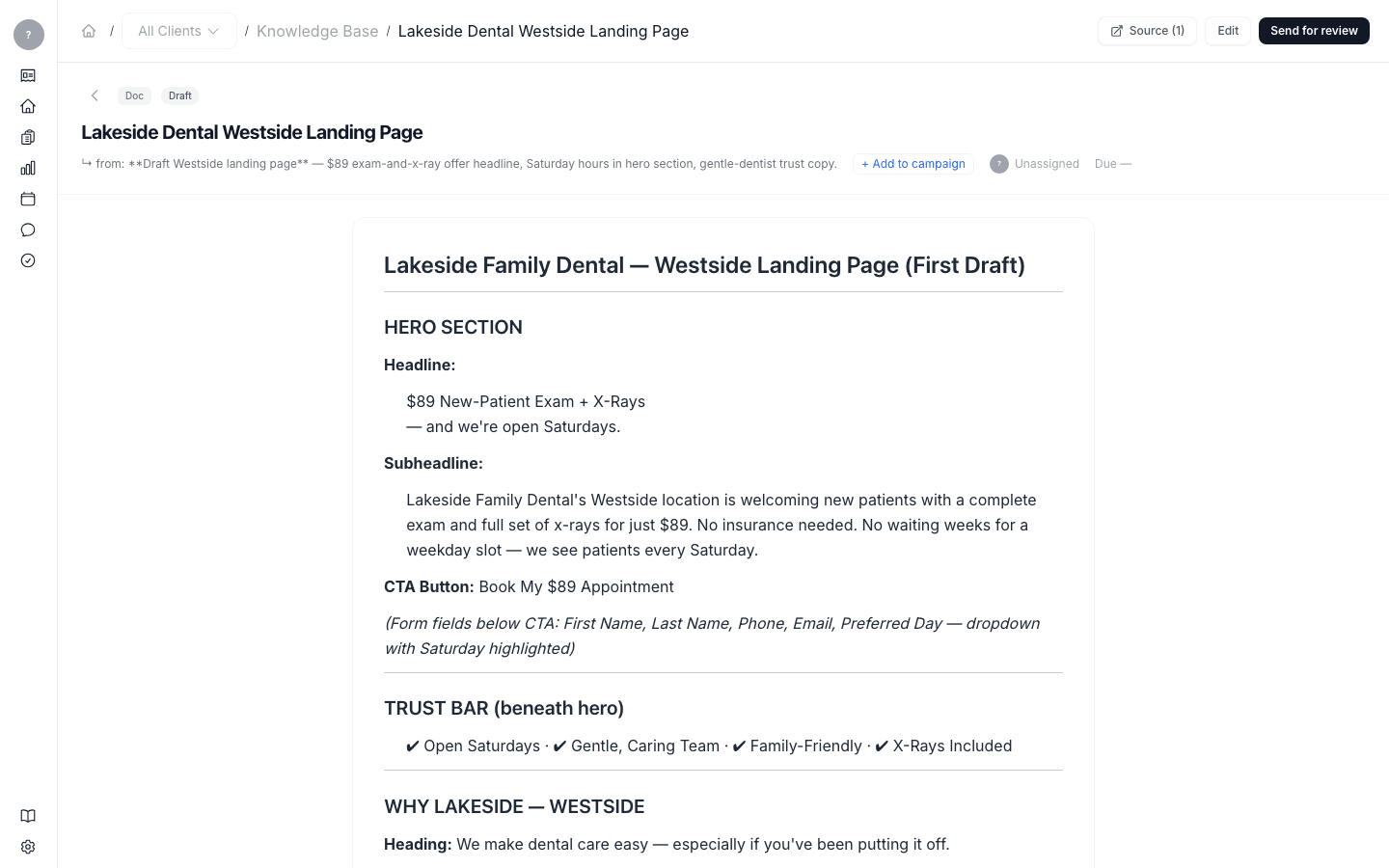
Open one draft. Notice it isn't generic: it shows where it came from (the meeting and the exact moment in the conversation that prompted it), it's marked as a draft awaiting your review, and it's written to sound like you.
That's the loop in miniature: a meeting went in, and finished-enough first drafts came out — in minutes, not hours.
What's next
You now have drafts to work with. From here you can edit a deliverable to make it yours, send it for review so a teammate or client can approve it, and add approved work to a campaign — each covered in the How-to guides.
And if you want to understand why the drafts already sound like you — and how they get better the more you use Launch OS — read the Explanation section.