Connect your domain
Put your pages on your own web address, check how it's going, and get the padlock.
Every account comes with a free Launch OS web address. To use your own, like www.yourbusiness.com, connect your domain once. Launch OS tells you exactly what to change, checks it for you, and gets the padlock that makes browsers show your site as safe.
You need a domain you already own. You can buy one from any domain company, like GoDaddy or Namecheap.
Add your domain
- Click the gear icon at the bottom of the left menu to open Settings.
- Click the Domains tab.
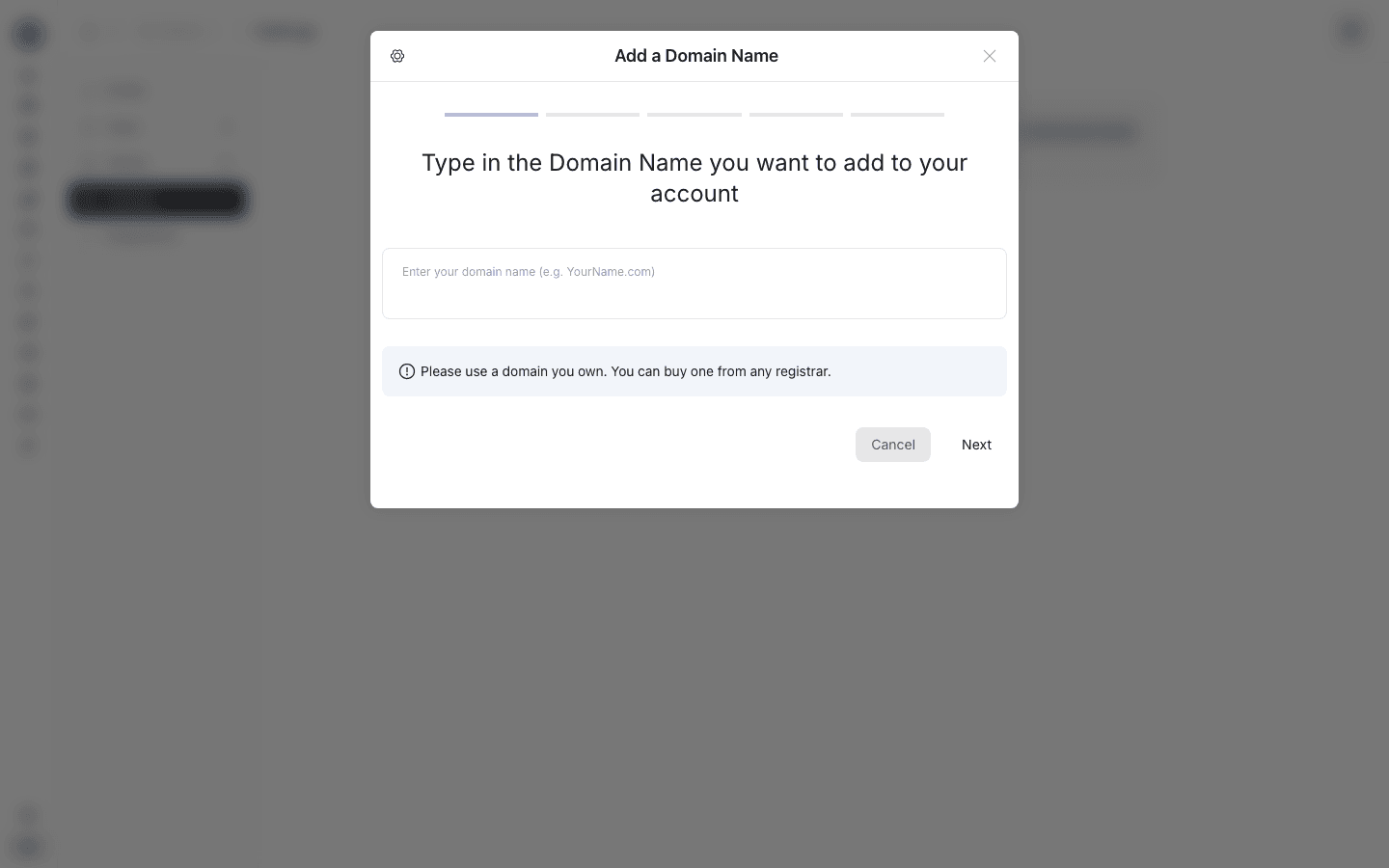
- Click + Add Domain Name.
- Type your domain, for example
yourbusiness.com, and click Next.
Your main address or a second one
If you typed your main domain (like yourbusiness.com), Launch OS asks whether there's anything on it now that you want to keep.
- No content, I'm starting from scratch. Your pages go on
www.yourbusiness.com. - It has content, preserve what's there. Your current website stays where it is. Type a short word in front of your domain, like
offer, and your pages go onoffer.yourbusiness.com.
If you typed an address with a word in front already, like offer.yourbusiness.com, Launch OS uses it as it is.
Add the record at your domain company
Next, Launch OS shows the one change to make. This change is called a DNS record: a line of settings at your domain company that tells the internet where to send your visitors.
Launch OS shows:
- The record to add, as a small table with Type, Name and Value. Click Copy the value to copy the long part.
- How to do it, in numbered steps. If Launch OS can tell which company looks after your domain, the first step says where to click there.
- Someone else looks after your domain? Click Copy the note and send it to them. It has everything they need.
Sign in at your domain company, add the record, and save. If there's already a record with the same name, change it or remove it, so only the new one is left.
Check how it's going
You don't need to press anything. Launch OS keeps checking on its own and emails you when your domain is live. You can close the window.
To look yourself, go to Settings, then Domains. Each domain shows where it stands. Click the domain to open Domain status. It says, in plain words, what's done and what's left.
| What it says | What it means |
|---|---|
| Waiting for DNS | We can't see your record yet. Most changes show up within minutes. Check that you saved it. |
| Getting certificate | Your record is right. We're getting your security certificate, the thing that gives your site the padlock. This usually takes a few minutes. |
| Live | Your site is live and secure on your domain. |
| Needs certificate | Your record is right, but this older domain has no certificate yet. See below. |
| Problem | Something is in the way. The status window says what it is and what to do. |
The padlock (security certificate)
For a domain you add now, the certificate comes on its own, and it renews on its own. You don't need to do anything.
If a domain says Needs certificate, click the … menu next to it and choose Secure this domain (SSL). Then click to confirm.
People who leave off the www
If your pages are on www.yourbusiness.com, some people will still type yourbusiness.com. Set your domain company to forward yourbusiness.com to https://www.yourbusiness.com. Most domain companies call this "forwarding" or "redirect."
The steps in Domain status include this. Once your site is live, Launch OS also warns you if the forward isn't set up yet.
Use the domain for a funnel, page or site
Once the domain is connected, pick it in the funnel's, page's or site's Settings, then publish. See Connect your own domain for those steps.
Disconnect a domain
Click the … menu next to the domain and choose Disconnect this domain. If any of your sites use it, the window says so first.
Do it from Claude
If you've connected Claude, you can ask Claude to connect your domain. It adds the domain, walks you through the record, and checks the status for you. See Use Launch OS from Claude.
Need help?
Stuck at your domain company? Email support@launchos.com and tell us where you bought the domain.