Send a page from Claude to your site
Connect Claude to Launch OS once, then ask it to put the pages it builds on your site.
If you build pages with Claude, you don't have to download and upload them. Connect Claude to your Launch OS account once. After that, Claude can add its pages straight to one of your sites.
Pages Claude adds arrive as drafts. Nothing goes live until you, or Claude with your yes, publish them.
Connect Claude (once)
- Open Launch Sites from the left menu and click Connect Claude at the top right. The page shows the steps and an address to copy.
- Click Copy address.
- In Claude (claude.ai or the Claude app), open Settings, then Connectors, then Add custom connector. Paste the address.
- Click Connect. Launch OS's sign-in page opens. Sign in and click Allow.
That's it. Claude now works in Launch OS as you, in your own account and any client accounts linked to your agency.
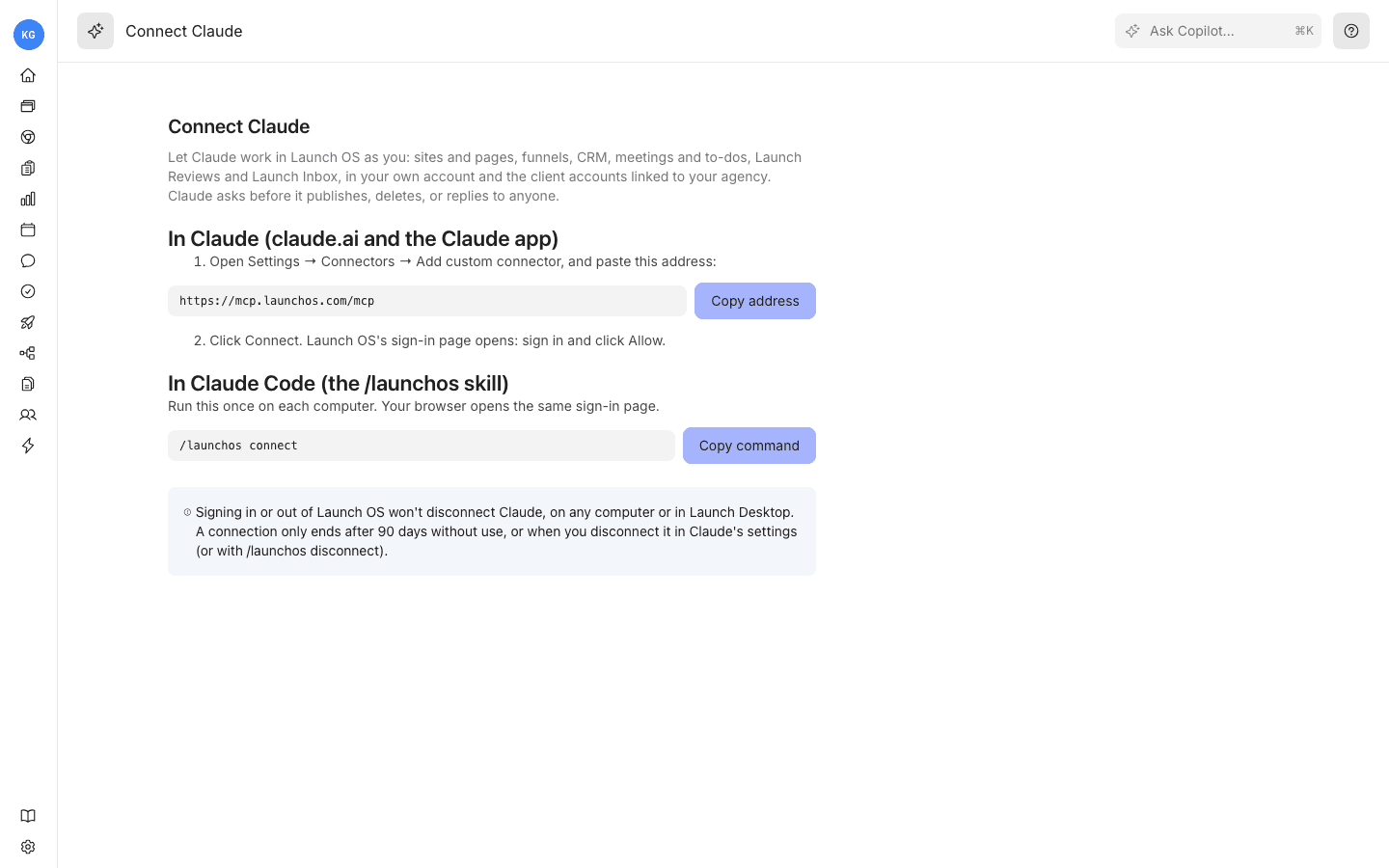
Use Claude Code? Run /launchos connect once on each computer instead. Your browser opens the same sign-in page.
Ask Claude to add the page
In a Claude chat, ask in plain words. For example:
Put this page on my Spring Open House site.
Claude then:
- Tells you its plan: which account, which site, and which pages. It waits for your yes.
- Adds the pages to that site as drafts. If the site doesn't exist yet, it can make it first.
- Tells you what it added, and anything it skipped and why.
Pages that belong together, like a sign-up page and its thank-you page, go in together.
Put the pages live
You have two choices:
- In Launch OS: open the site, click the page to preview it, then click Publish.
- In Claude: ask it to publish. Claude asks you to confirm first, then gives you the live addresses.
Claude also asks before it takes a page offline or deletes one, and tells you the page's live address when it does.
Good to know
- Signing in or out of Launch OS won't disconnect Claude. The connection ends only after 90 days without use, or when you remove it in Claude's settings.
- Claude can fix a page too. Ask it to change a page, and it saves the new version in Launch OS. If the page is already live, the old version stays up until you publish again.
Need help?
Email support@launchos.com.