Images and style files that come with a page
How to make sure your page's pictures and look come through when it goes live.
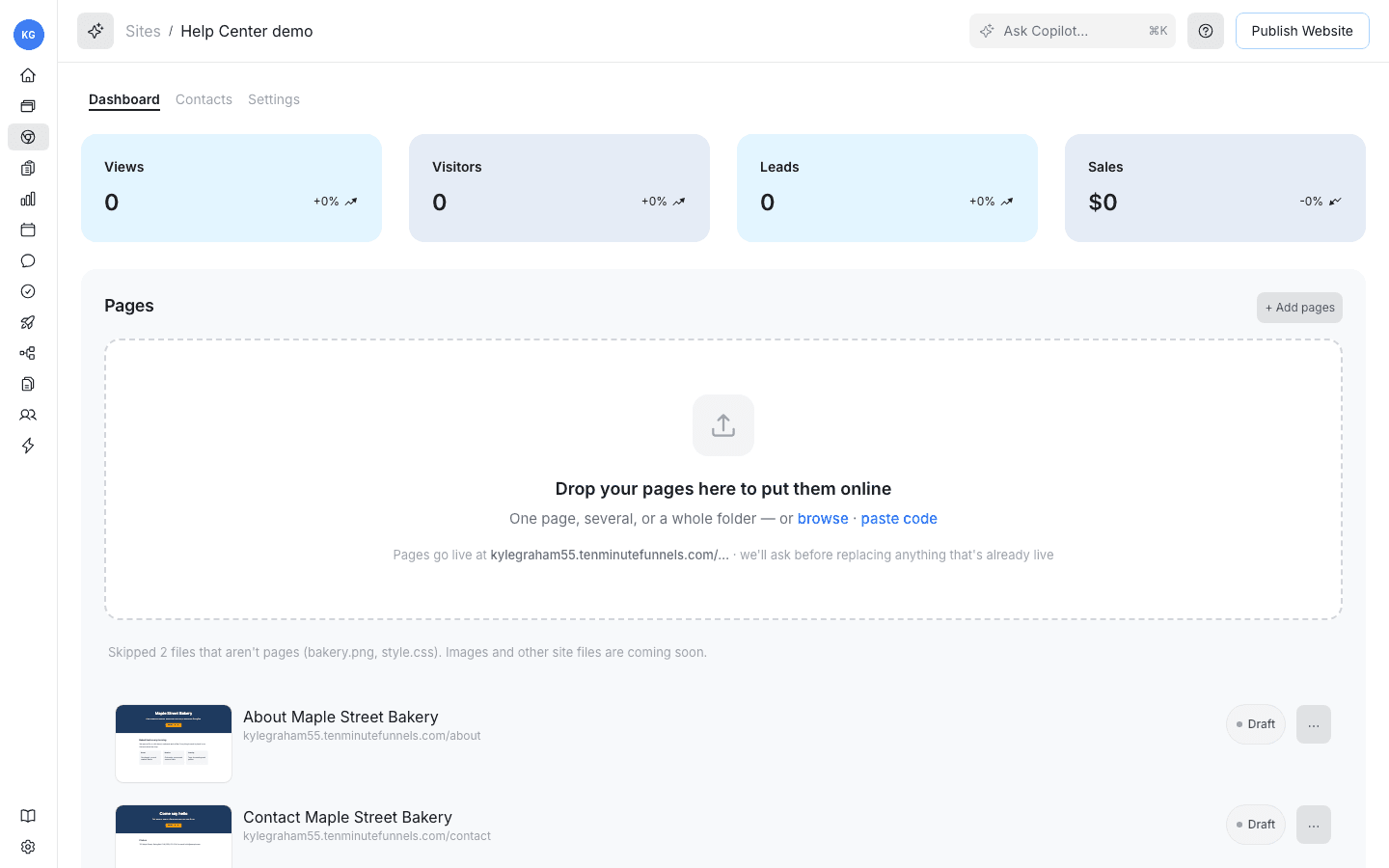
Today, Launch Sites takes page files only (files ending in .html). If you drop a folder that also holds pictures or style files, those extra files are skipped. Your page still goes live, but any picture it loads from those files won't show.
Here's how to make pictures and styling work.
Keep the styling inside the page
Put the page's styling in the page file itself, in a <style> section at the top. Pages built with Claude usually work this way already. A separate style file (like style.css) won't come along.
Use pictures that live on the web
A picture shows on your page when the page points to it by its full web address, starting with https://. You have three ways to do that:
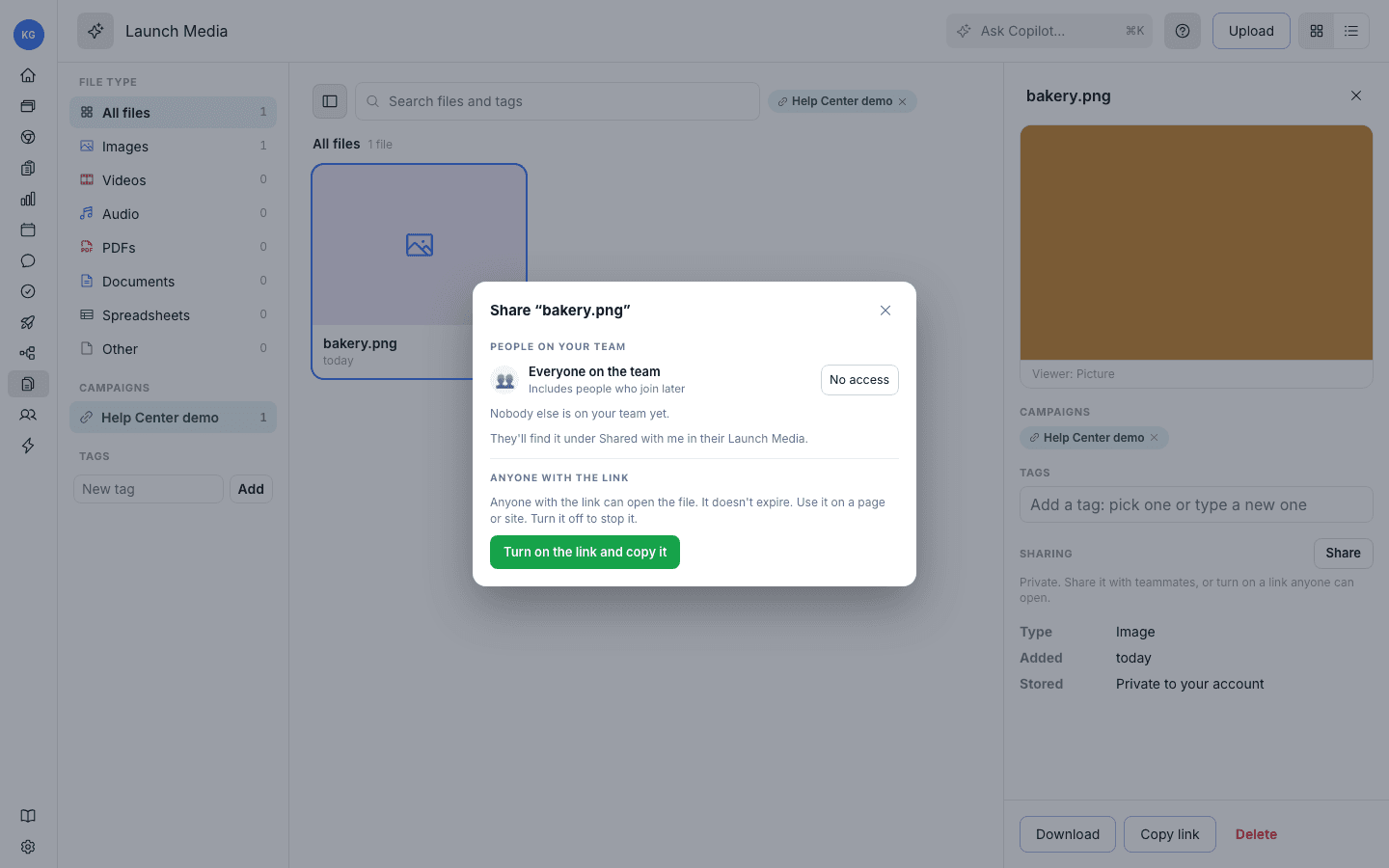
Put the picture in Launch Media and use its public link
This works if your account has Launch Media.
- On the site's Dashboard, scroll to Launch Media and click Choose files, or drop the picture there.
- Click Open in library, then click the picture.
- Under Sharing, click Share, then Turn on the link and copy it.
- Use that link as the picture's address in your page.
Anyone with the link can open the file, and it doesn't expire. To stop it, open Share again and turn the link off. Your page will then lose the picture.
Use a picture that's already online
If the picture is already on your website or another service, use its full address in your page.
Build the picture into the page
Claude and other tools can put a picture inside the page file itself. This always works, but it makes the page file bigger. A page can be up to 14 MB.
Ask Claude to fix it for you
If you built the page with Claude, ask it:
Put the styling inside the page, and use full web addresses for the pictures.
Then add the new version to your site.
Need help?
Email support@launchos.com.