Publish, take offline, rename, replace or delete a page
Put a page live, take it down without losing it, give it a new name or address, swap in a new version, or remove it for good.
You can change any page in a site from two places:
- The site's Dashboard: click ⋯ next to the page.
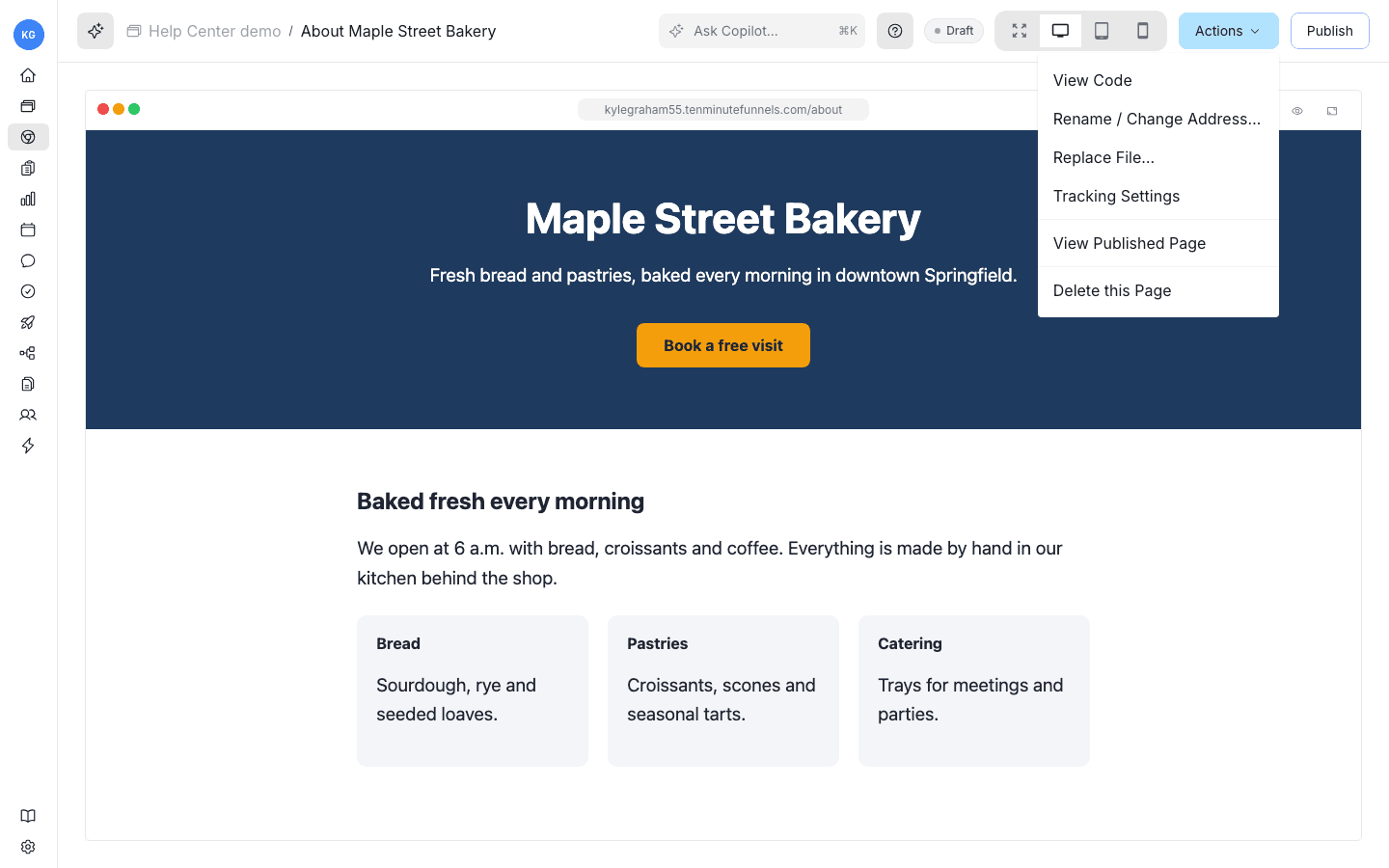
- The page itself: click the page to open it, then use Actions and the Publish button at the top right.
Publish a page
- From the Dashboard: click ⋯ next to the page and choose Publish this page.
- From the page: click Publish at the top right. If the page is already live, the button says Republish.
A box shows where the page went live, with a link to open it.
To publish every page in the site at once, click Publish Website on the site's Dashboard.
Take a page offline
This takes a live page down but keeps it in the site, so you can put it back later.
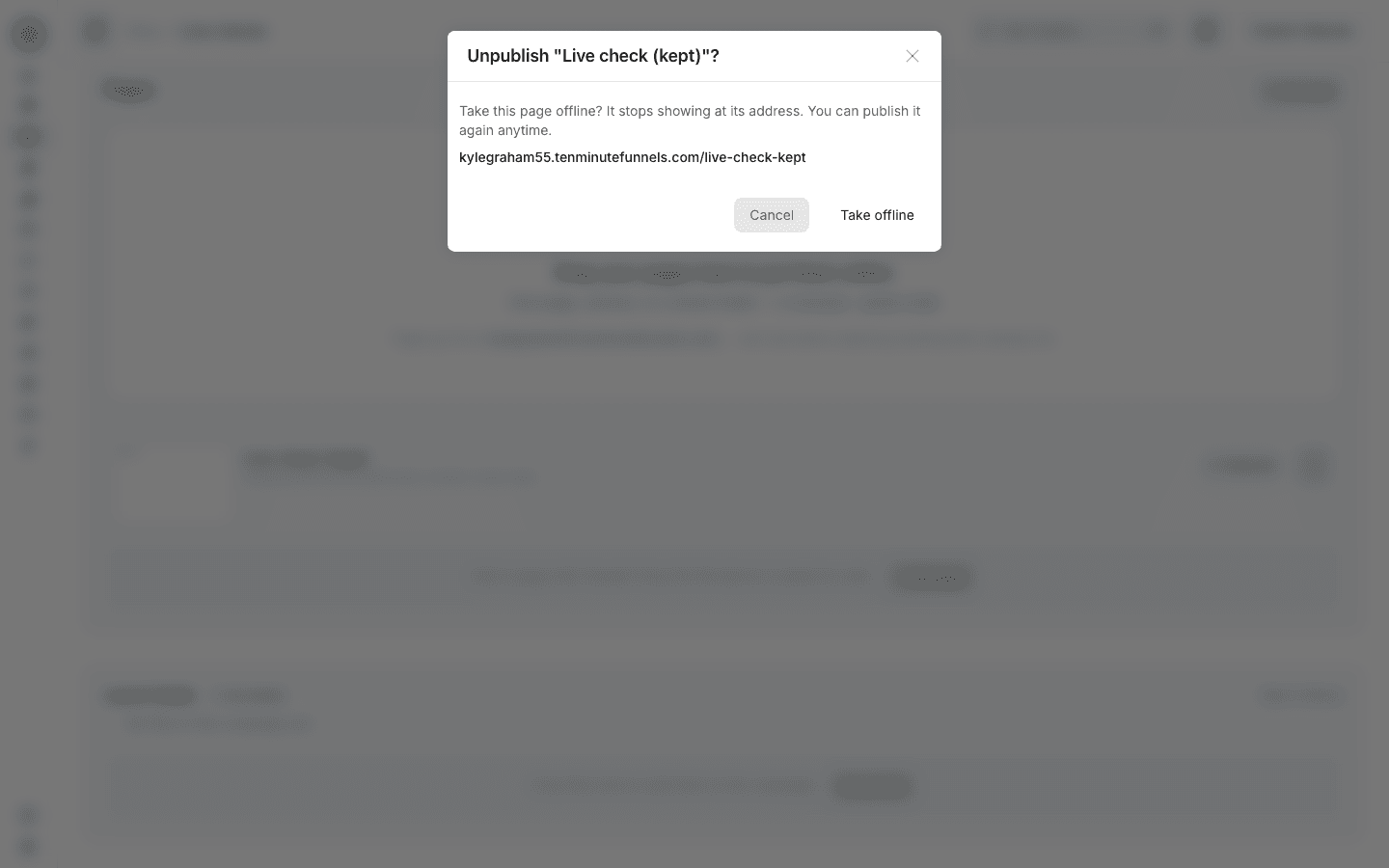
- On the site's Dashboard, click ⋯ next to a published page and choose Unpublish. Or open the page and choose Actions, then Unpublish.
- The box shows the page's live address. Click Take offline.
The page stops showing at its address and becomes a Draft. To put it back, publish it again.
Unpublish only shows for pages that are live.
Rename a page or change its address
- Click ⋯ next to the page and choose Rename / change address. Or open the page and choose Actions, then Rename / Change Address….
- Change the Page name, the Address, or both. Launch OS checks the address as you type and tells you if it's free.
- Click Save.
If the page is live and you changed its address, publish it again. The page then moves to the new address, and the old address stops working.
Replace a page with a new version
There are two ways:
- Open the page and choose Actions, then Replace File…, and pick the new file. You can also drag the file onto the preview. The new version is saved but not live yet, so you can preview it. Click Republish to put it live.
- Drop the new file on the site's Dashboard, using the same file name you used for the page, so it gets the same address. If the page is live, Launch OS asks first. Click Replace it. The new version goes live right away. Click Undo within about 10 seconds to put the old version back.
Delete a page
- Click ⋯ next to the page and choose Delete page. Or open the page and choose Actions, then Delete this Page.
- Read the box. If the page is live, it shows the address that will go offline.
- Click Delete and take offline for a live page, or Delete for a draft.
There's no undo. Keep a copy of the page file if you might need it again. To take a page down but keep it, use Unpublish instead.
Need help?
Email support@launchos.com.