Preview on desktop, tablet and phone
See how a page looks on a computer, a tablet and a phone before visitors do.
Every page in a site has a preview. It shows the page exactly as it was uploaded, at the size of a computer, a tablet or a phone. Looking at a preview never counts as a visit.
Open the preview
- Open Launch Sites and click the site.
- On the Dashboard, click the page. You can also click ⋯ next to it and choose Open.
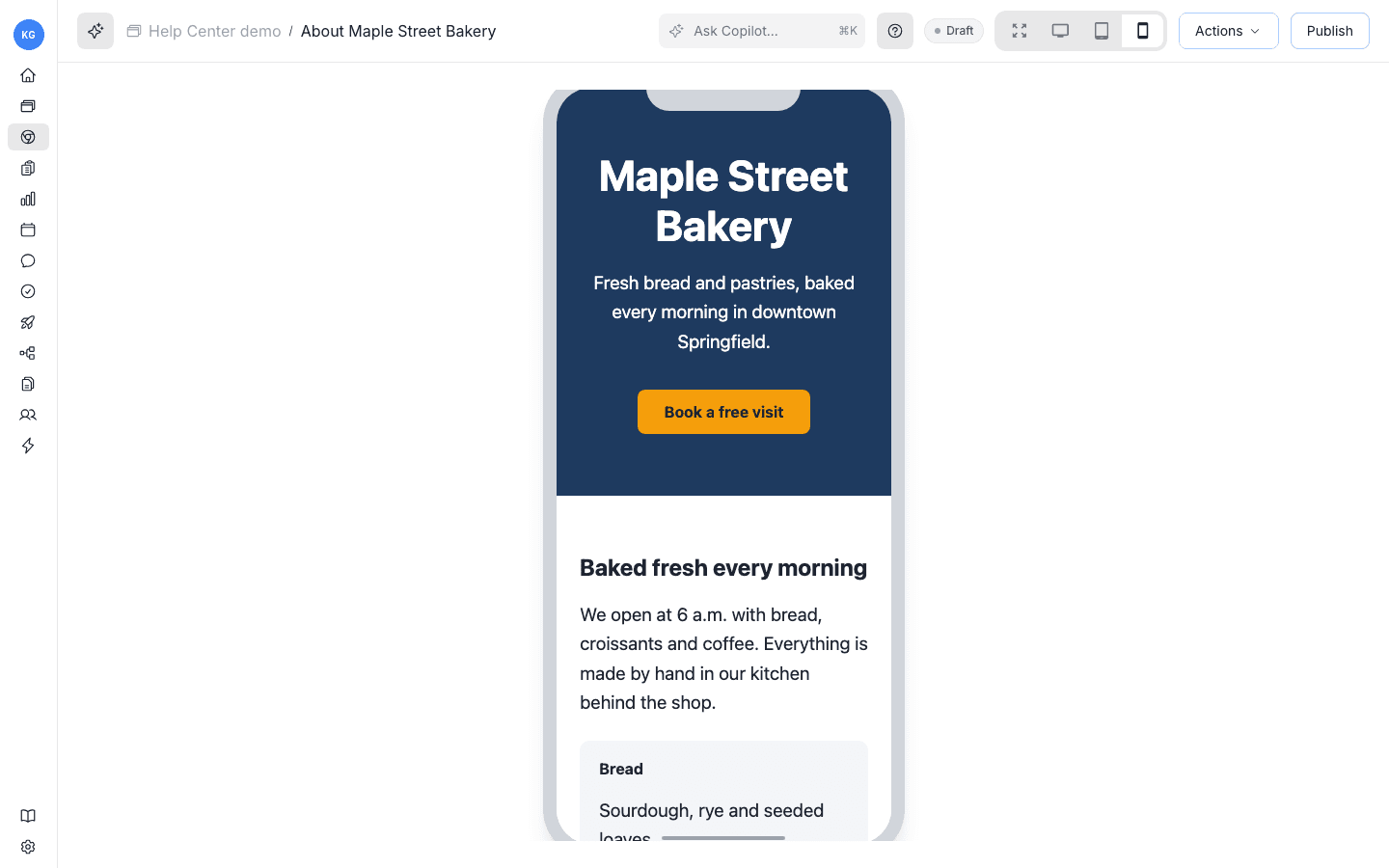
The page opens inside a browser frame. The top bar shows the page's status: Draft, Published, or Changes not live.
Switch the screen size
Use the four buttons in the top bar, from left to right:
- Full screen: the page fills the whole window.
- Desktop: the page in a computer's browser window. This is where you start.
- Tablet: the page at a tablet's width.
- Phone: the page inside a phone outline.
Scroll inside the frame to see the rest of the page.
See the page's code
Click Actions, then View Code. You see the page exactly as you uploaded it. Launch OS never changes your file. Click Actions, then Back to Preview to return.
When to preview
Pages you drop or paste go live right away, so preview them just after. Two kinds of page wait for you instead:
- Pages Claude sends you arrive as drafts. Preview them, then click Publish.
- A new version of a live page (from Actions, then Replace File…) is saved but not live yet. Preview it, then click Republish.
Good to know
- The preview leaves out your tracking codes, so previews don't add to your visit counts. Launch OS adds the codes when you publish.
- Links between your pages are fixed when you publish, so a link may not work inside the preview.
Need help?
Email support@launchos.com.
Send a page from Claude to your site
Connect Claude to Launch OS once, then ask it to put the pages it builds on your site.
Publish, take offline, rename, replace or delete a page
Put a page live, take it down without losing it, give it a new name or address, swap in a new version, or remove it for good.