Create a site and add pages
Make a site, add your pages to it, and put them online.
A site is a folder of pages that share one web address. Make the site first, then add its pages. Pages you drop in or paste go online straight away.
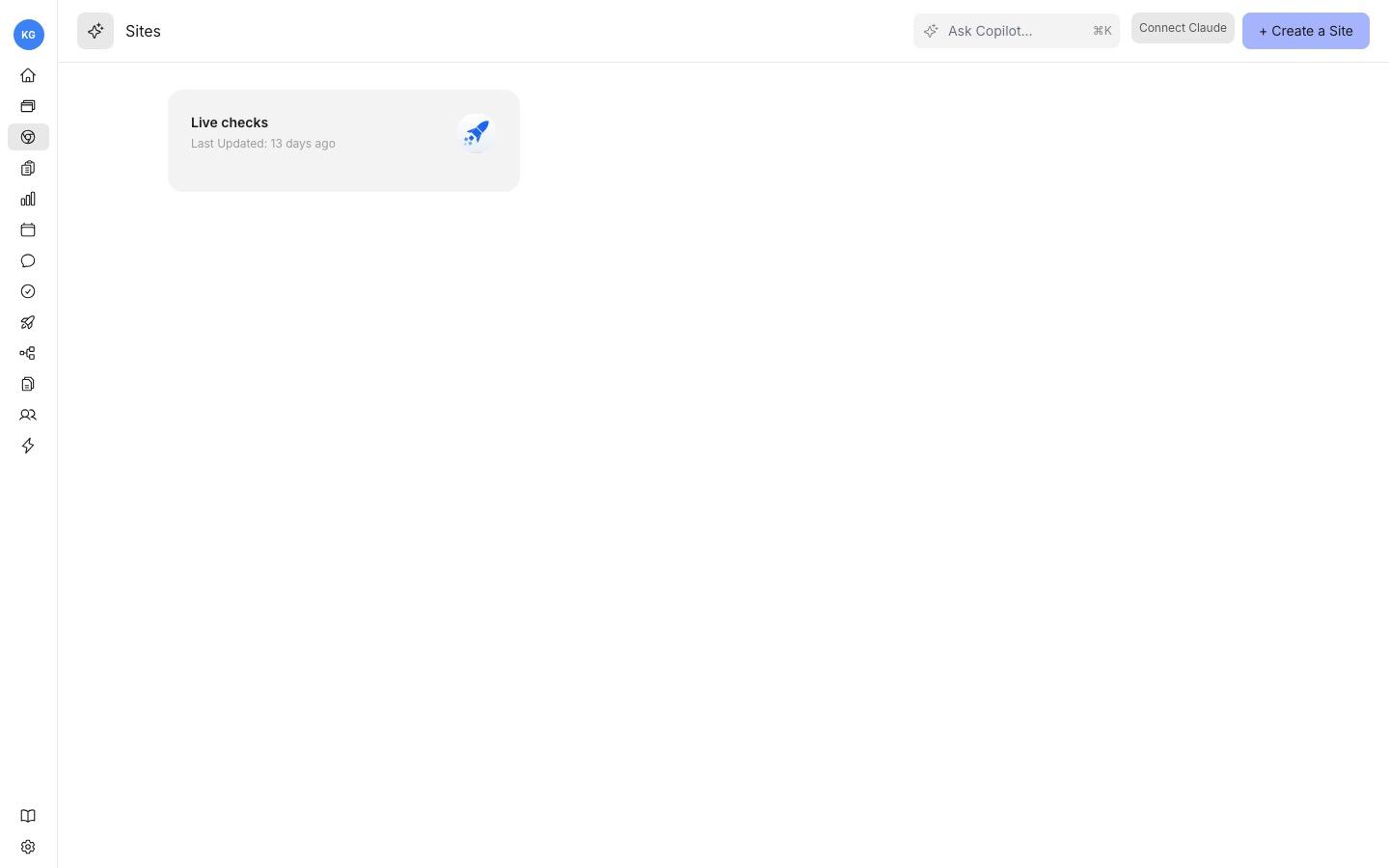
Create a site
- Open Launch Sites from the left menu. Your sites show as cards.
- Click + Create a Site at the top right.
- Type a name for the site and click OK.
The new site opens on its own page.
What's on a site's page
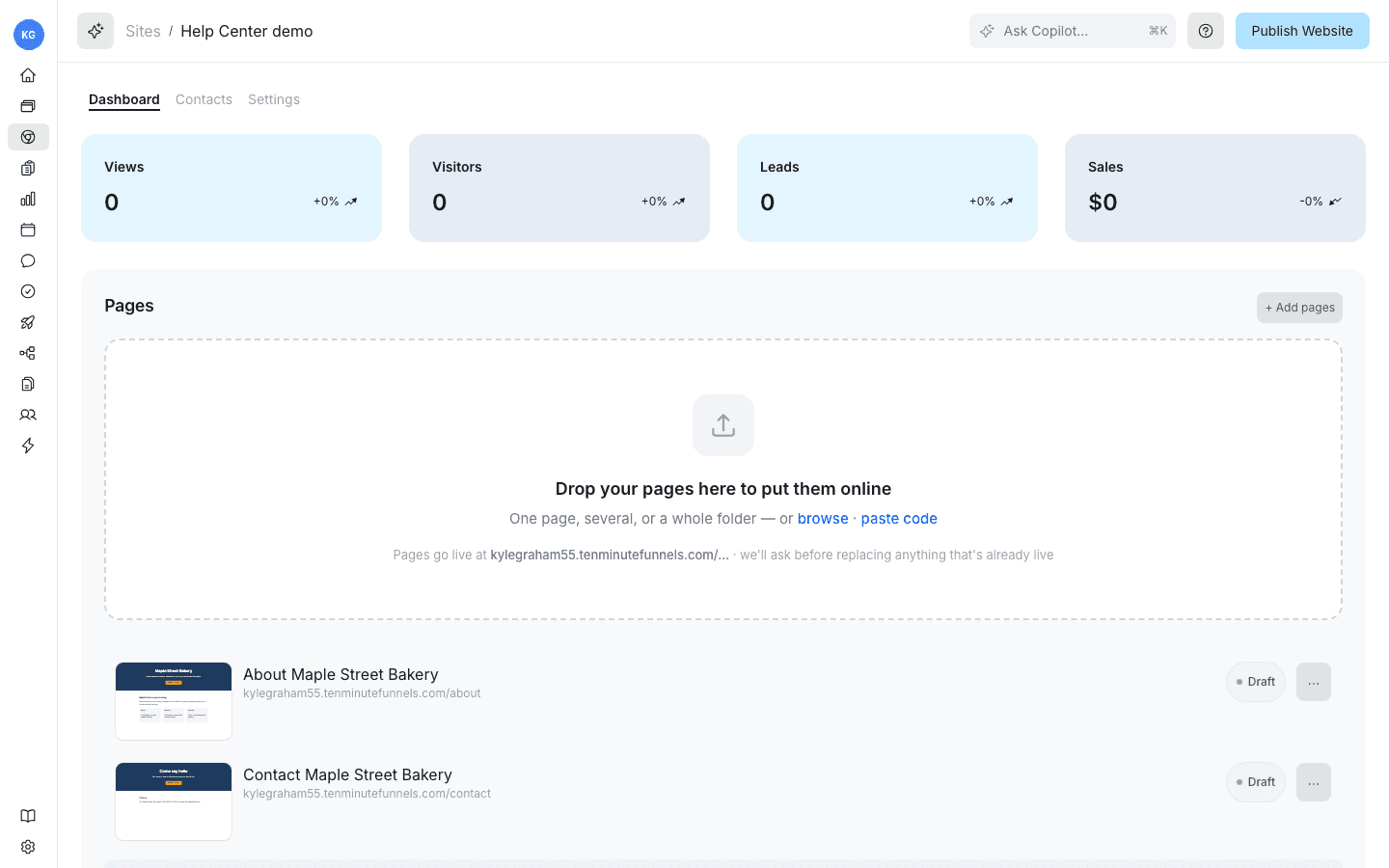
Click a site's card to open it. It has three tabs:
- Dashboard: the site's Views, Visitors, Leads and Sales, then Pages (every page, its web address, and whether it's live), then Launch Media (the pictures and files that belong to the site).
- Contacts: people who filled in a form on the site.
- Settings: the site's name and the web address it uses.
Add pages
You can drop page files, browse for them, or paste a page's code. A page file is a file that ends in .html.
Drop or browse for files
- On the site's Dashboard, drag your page files onto the box that says Drop your pages here to put them online. You can drop one page, several, or a whole folder.
- Or click browse (or + Add pages) and pick the files.
Each page goes online in a few seconds, at the site's address followed by the page's name. For example, about.html goes live at yoursite.com/about. A bar shows each page's progress, then a link to open it.
If a page with the same address is already live, Launch OS asks first. Click Replace it to put the new one up, or close the box to keep the live page.
Changed your mind? Click Undo in the black box at the bottom of the screen. It stays for about 10 seconds.
Paste a page's code
- In the drop box, click paste code.
- Paste the whole page, starting with
<!doctype html>. - Check the Page name and Address. Launch OS fills them in from the page's title.
- Click Publish. The page goes live right away.
Publish the whole site again
Click Publish Website at the top right. It publishes every page in the site at once. Use it after you change a page or the site's settings.
Good to know
- Addresses are shared by all your sites. Two pages in your account can't both use
/contact, even in different sites. When you drop a page whose address is taken, Launch OS uses the next free one (like/contact-2) and tells you. - Only page files are added. Pictures and style files dropped with a page are skipped for now. See Images and style files that come with a page.
Next steps
- Send a page from Claude to your site
- Preview on desktop, tablet and phone
- Publish, take offline, rename, replace or delete a page
- Put your site on your own domain
Need help?
Email support@launchos.com.