Send visitors to the next step
Set a button or form so it takes the visitor to the next step in your funnel.
A funnel works when each page hands the visitor on. You do that with the page's button or form. Set it to Go to the next page, and it follows the line you drew on the funnel's map. If you move steps around later, the button keeps up on its own.
Set a button
- Open the step's page in the editor. See Edit a step's page.
- Hover over the button. A small BUTTON label shows just above it. Click the label to select the button. (Clicking the button itself follows its link.)
- On the right, open Button Actions.
- Choose Go to the next page from the list.
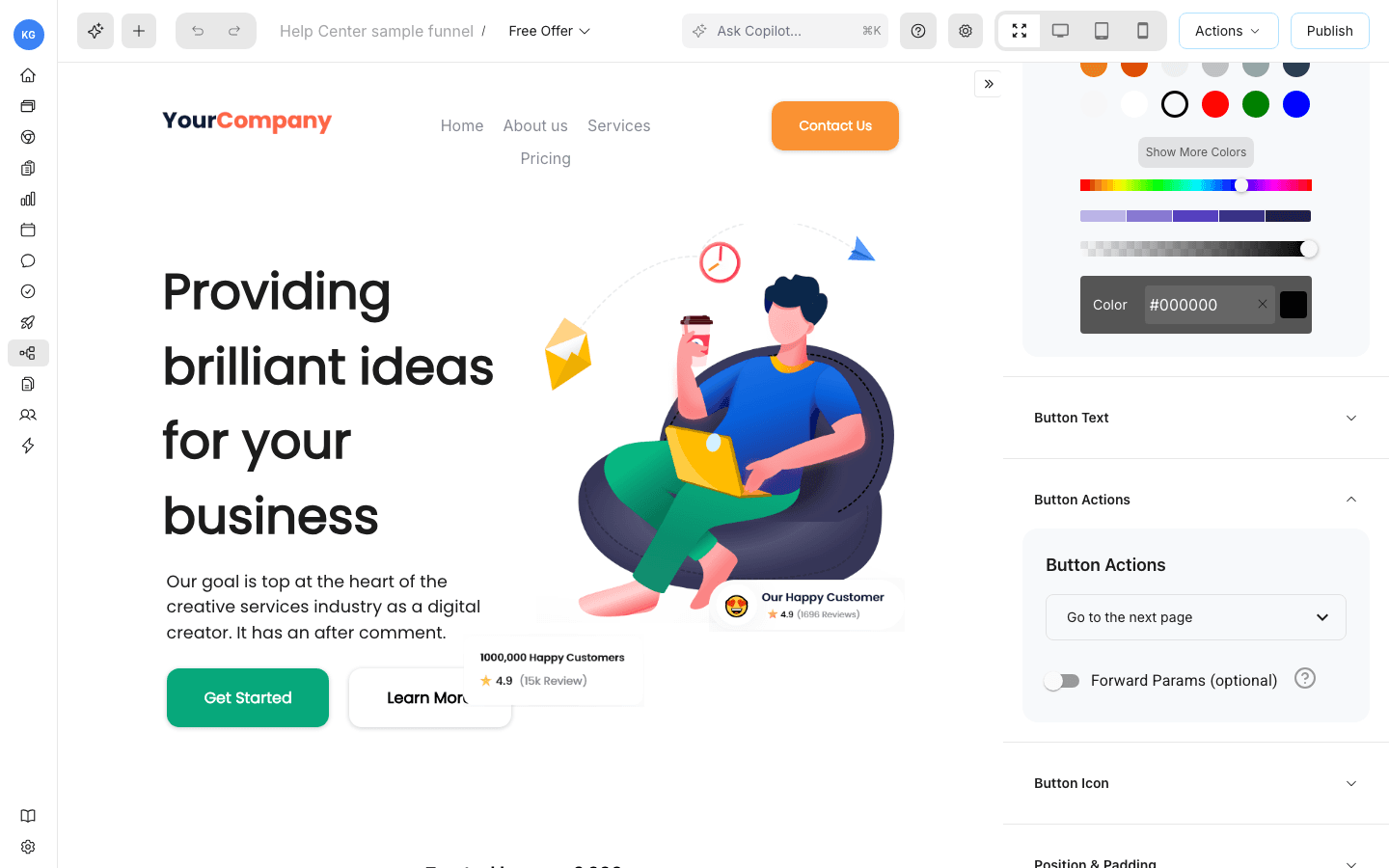
The editor saves the change for you.
Set a form
A form's button does two jobs: it sends the visitor's details, then moves them on.
- Select the form's button the same way: hover, then click the BUTTON label.
- Open Button Actions.
- In the first list, choose Submit this Form.
- In the second list, choose Go to the next page.
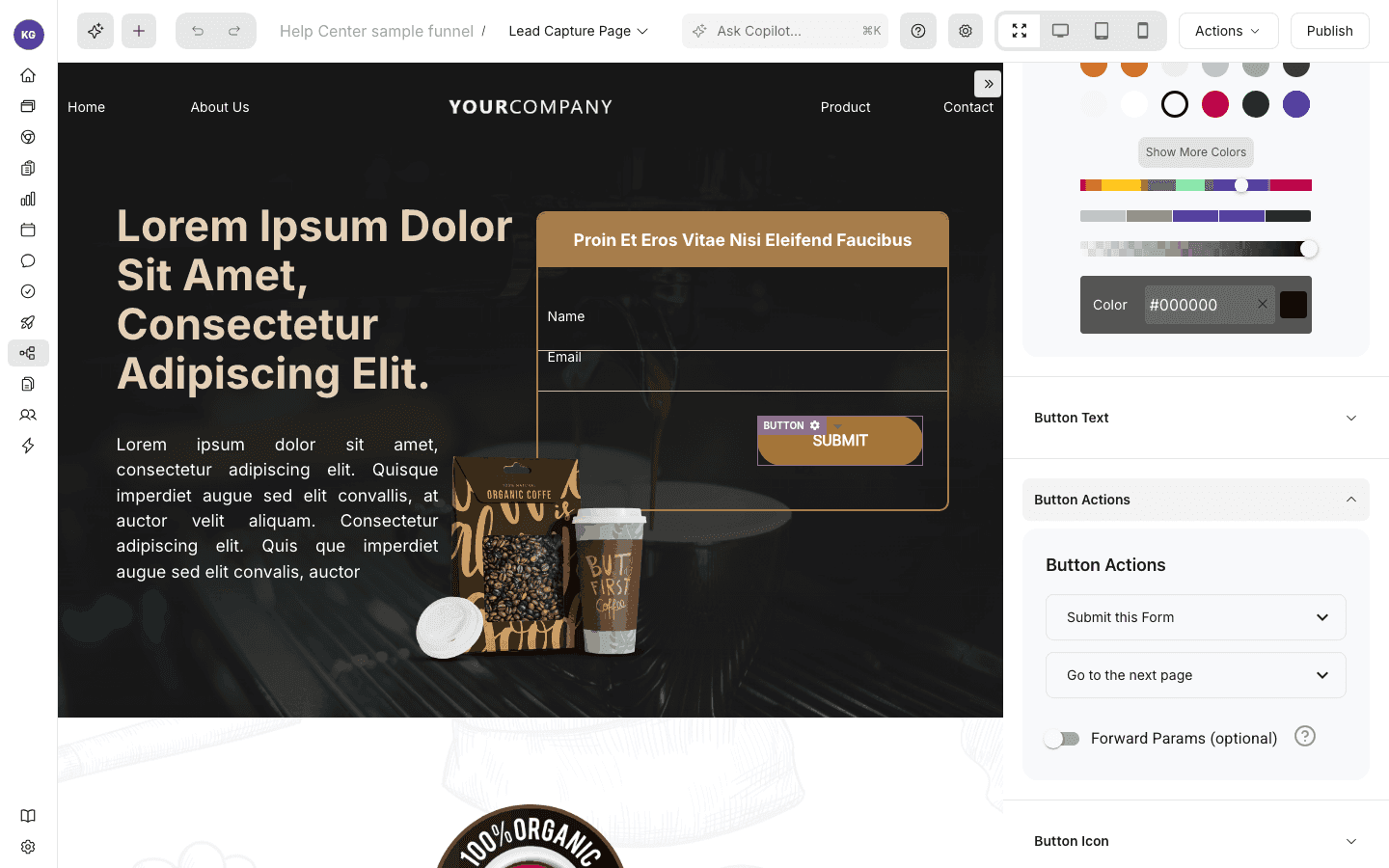
Other choices in the list
- Go to a Specific Page sends the visitor to the step you pick, or to any web address with Enter a Custom URL.
- Do Nothing turns the button off.
When a step has more than one line out
Go to the next page follows one line. If a page has two lines going out, use Go to a Specific Page on each button to say which step it opens. To send different people down different lines on their own, put a Smart Route after the page.
Make it live
Button and form changes reach visitors only after you publish the funnel.
Need help?
Email support@launchos.com.
Edit a step's page
Open a funnel step in the page editor, pick its design, and change its words and pictures.
Send visitors down different paths
Use a Smart Route step to send each visitor to a different page, based on the link they came from, how often they've visited, the date, or what they typed in a form.