Add and connect steps on the map
Add pages and other steps to your funnel's map, draw where each one leads, and rename or remove them.
The Visual Funnel Builder tab shows your funnel as a map. Each box is a step, and each line shows where a visitor goes next. This guide shows you how to add steps, join them up, and tidy the map.
Add a step
- Open your funnel and click the Visual Funnel Builder tab.
- Right-click an empty spot on the map. A menu opens.
- Pick the kind of step:
- New Page adds a new page, such as a Lead Capture Page, Sales Page or Thank You Page.
- Destinations adds a step that sends visitors somewhere: Route to URL (another website), Smart Router (different paths for different visitors) or Another Funnel.
- Click the step you want. It appears where you right-clicked.
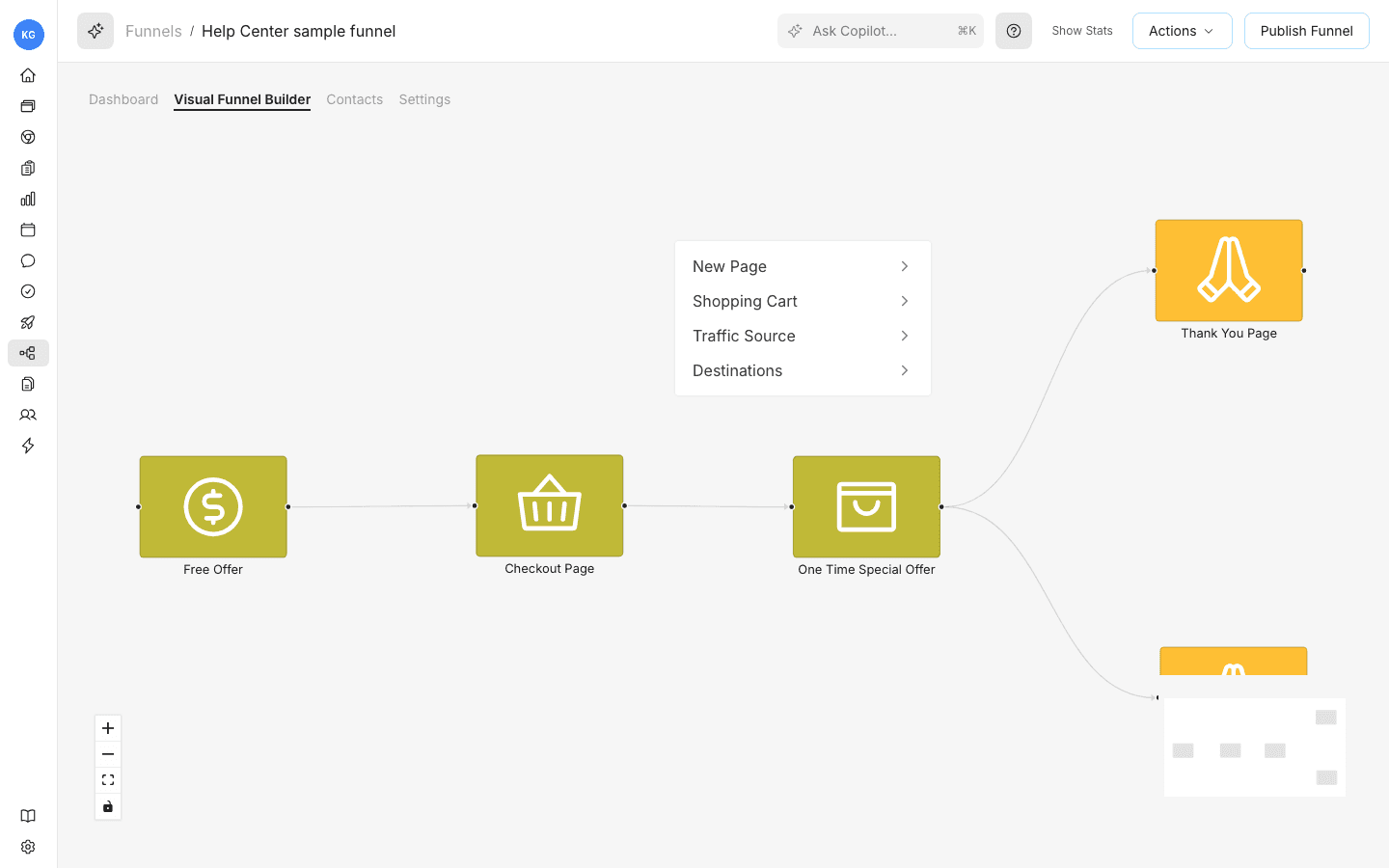
A new page step also shows on the funnel's Dashboard. It starts empty. You give it a design the first time you open it (see Edit a step's page).
Join two steps with a line
Each box has a small dot on its left side (the way in) and on its right side (the way out).
- Hover over the dot on the right side of the first step.
- Press and hold, then drag to the dot on the left side of the next step.
- Let go. A line joins the two steps. The map saves it for you.
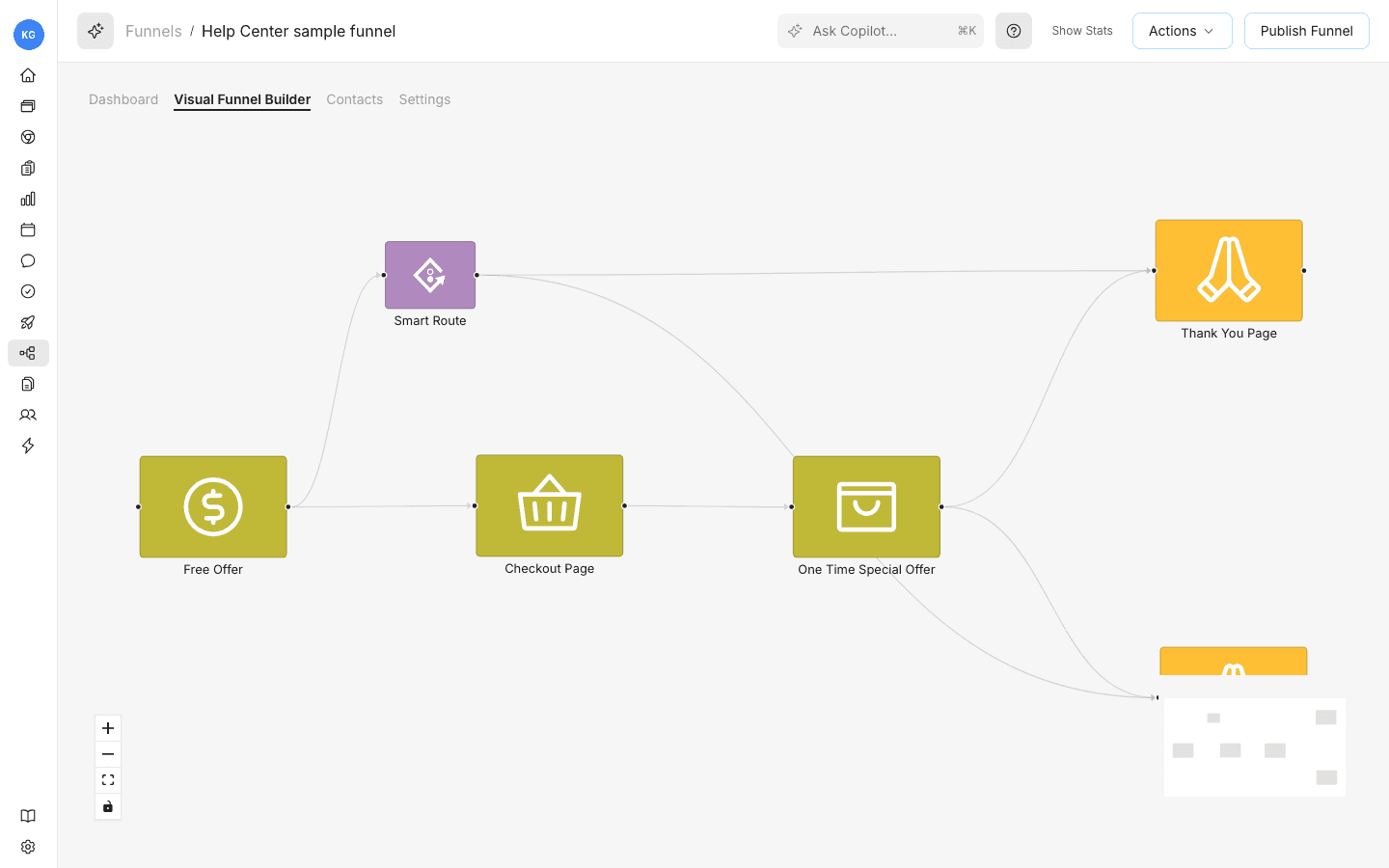
A step can have more than one line going out. Use a Smart Route when you want different visitors to take different lines.
Remove a line
Click the line to select it, then press the Backspace key.
Change a step's settings
Double-click a step to open it:
- A page step opens the page editor.
- Route to URL asks which web address to send visitors to. Type it and click Save Settings.
- Smart Router opens its rules. See Send visitors down different paths.
Rename or remove a step
Right-click a step to open its menu.
- Rename Page: type the new name and click OK.
- Delete Item: removes the step and the lines to and from it.
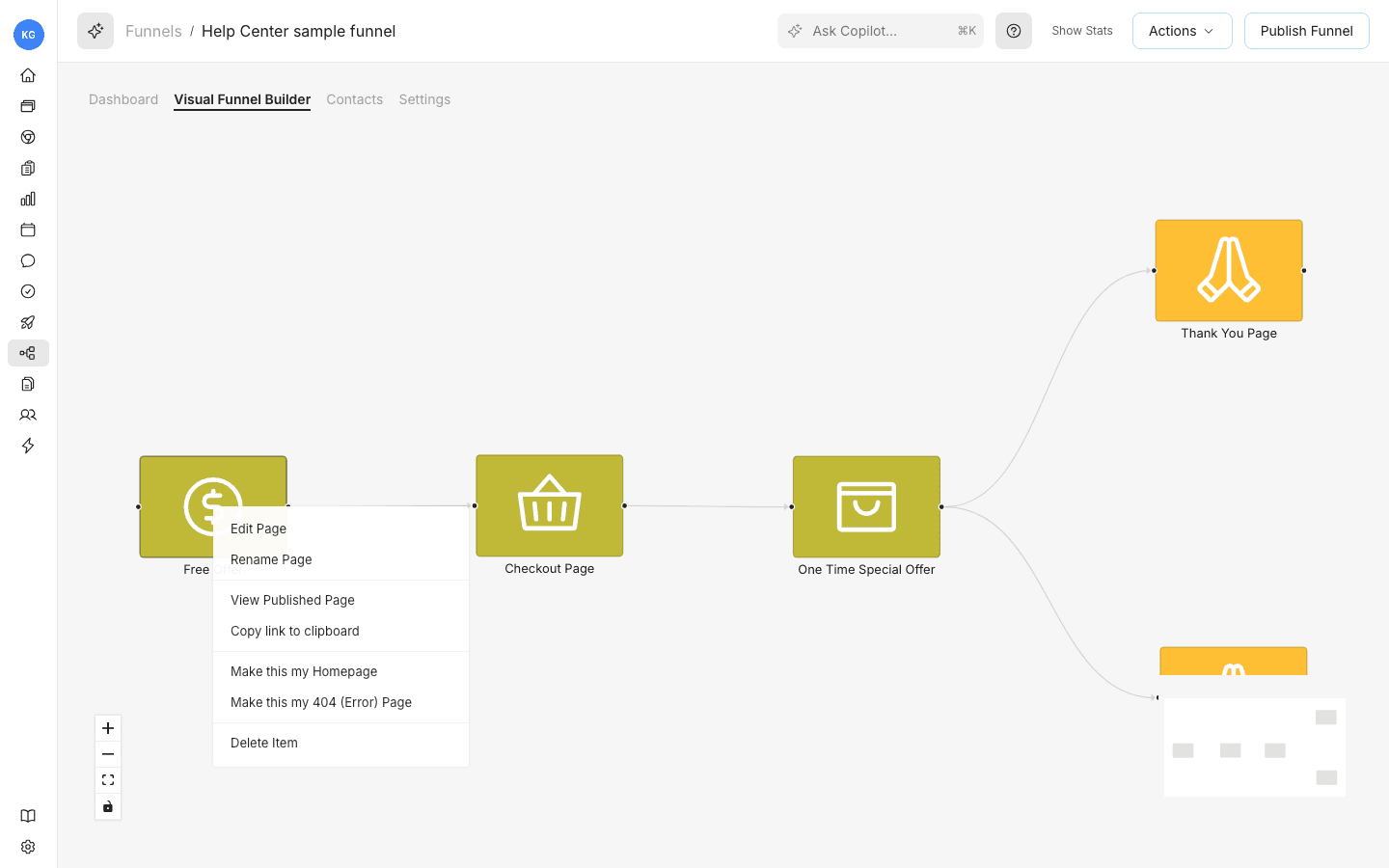
Changes on the map reach your live funnel only after you publish it again. That includes removing a step: until you publish, the live step before it still links to the old page.
Move around the map
- Drag an empty spot to move the map.
- Use the + and – buttons at the bottom left to zoom in and out.
- Drag a step to move it. Its lines follow.
Need help?
Email support@launchos.com.