Edit a step's page
Open a funnel step in the page editor, pick its design, and change its words and pictures.
Every page step in a funnel is a normal Launch OS page. You change it in the same editor as Launch Pages. This guide shows you how to open it from your funnel.
Open the page
Use whichever is handy:
- On the Visual Funnel Builder tab, double-click the step.
- On the map, right-click the step and click Edit Page.
- On the Dashboard tab, click the … next to the page and click Edit Page.
Pick a design the first time
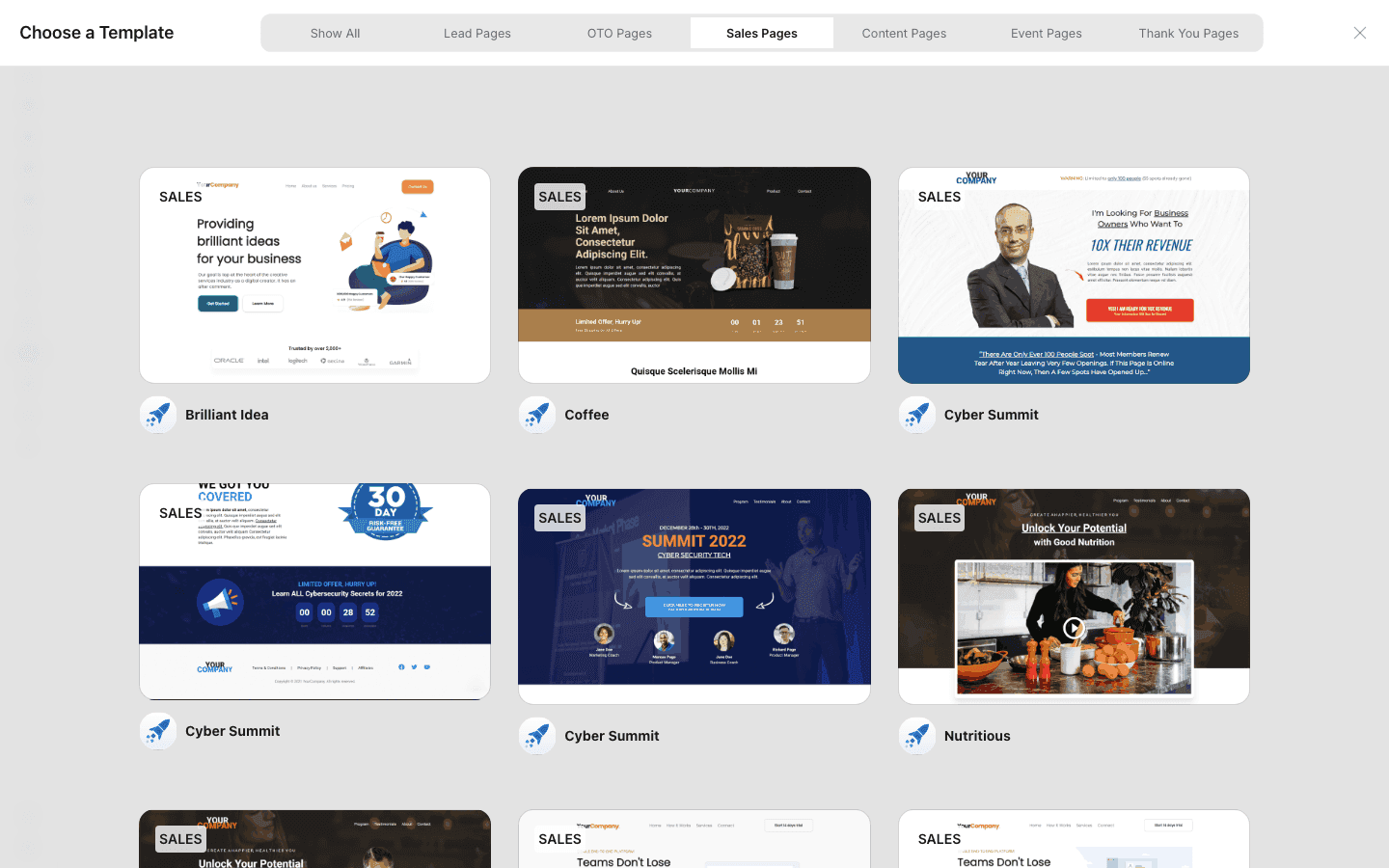
A step from a template, or one you just added, may not have a design yet. Then Choose a Template opens first.
- Use the tabs at the top (Lead Pages, Sales Pages, Thank You Pages and more) to narrow the list.
- Click the design you want.
- Click OK when it asks if you're sure. The design replaces anything on the page.
The editor opens with the design in place.
Change the page
- Click any words, picture or section to select it. Its settings open on the right.
- To select a button, hover over it and click the small BUTTON label just above it. (Clicking the button itself follows its link.)
- Click + at the top left to add more to the page.
- Use the arrows next to + to undo or redo.
- Switch between the page names at the top (click the name next to your funnel's name) to jump to another step.
The editor saves as you go. For a full tour, see Launch Pages.
To pick a new design later, open the page settings (the gear at the top) and click Choose Template. This replaces the whole page.
Make it live
The Publish button in the editor puts just this one page online. To put all your steps online at once, publish the whole funnel. See Publish your funnel.
Need help?
Email support@launchos.com.