Manage funnels: rename, copy, delete
Rename a funnel, make a copy of it, share it, or delete it.
All your funnels show as cards when you open Launch Funnels. Click a card to open that funnel. This guide covers keeping the list tidy.
Rename a funnel
- Open the funnel and click the Settings tab.
- Under Funnel Details, change the Funnel Name. You can add a Funnel Description too.
Your changes save as you type.
Make a copy of a funnel
There's no Copy button yet. You can make one with the funnel's share link:
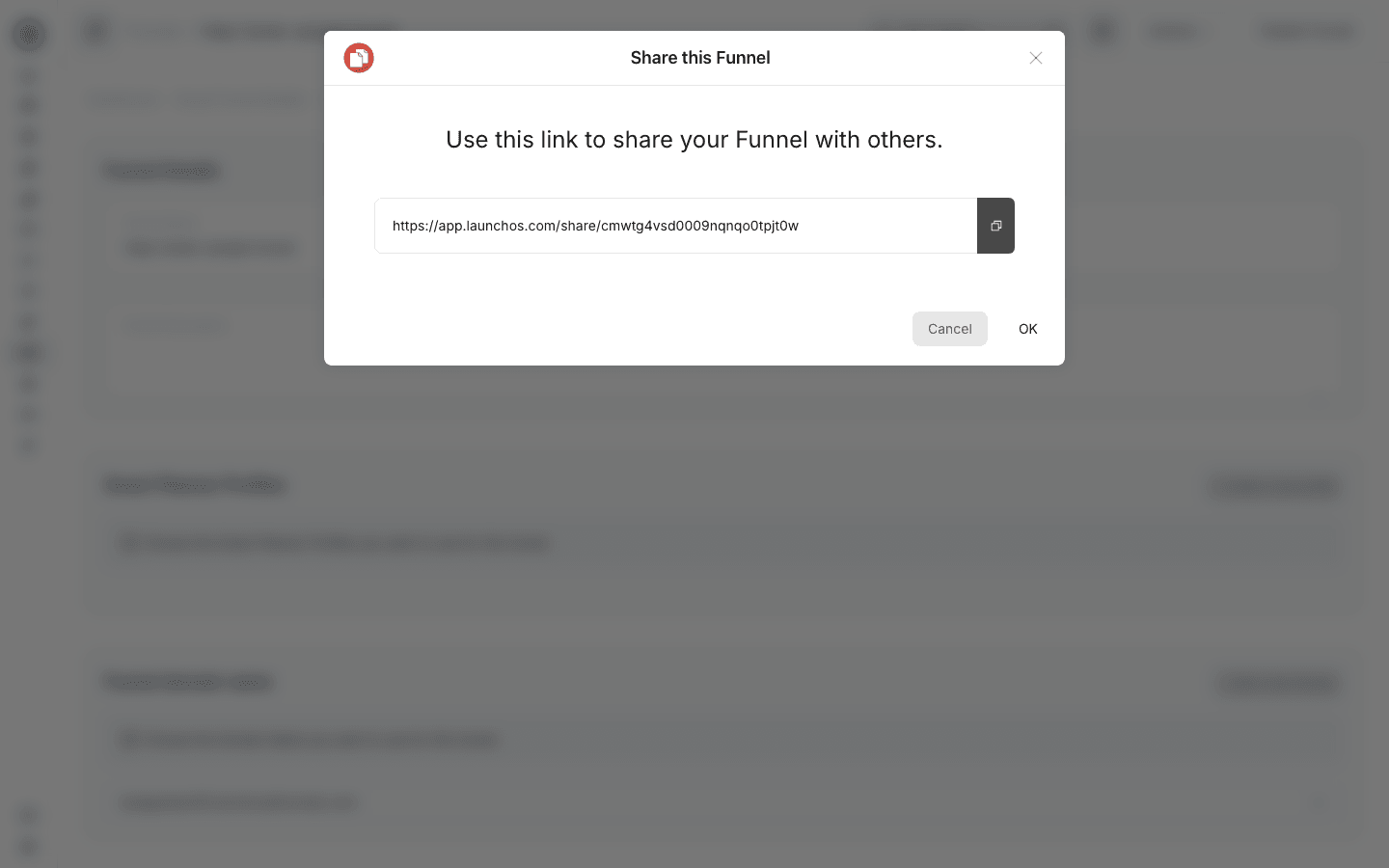
- Open the funnel. Click Actions at the top right, then Share this Funnel.
- Click the button next to the link to copy it.
- Paste the link into your browser's address bar and open it.
- Click Accept It.
The copy opens, with all the steps and lines. It has the same name as the first one, so rename it straight away (see above).
Share a funnel with someone else
Send them the link from Share this Funnel. When they open it and click Accept It, a copy goes into their own Launch OS account. Your funnel doesn't change.
Delete a funnel
Deleting a funnel can't be undone.
- Open the funnel and click the Settings tab.
- Scroll to Delete this funnel.
- Tick Yes, delete this funnel.
- Click Delete Funnel.
- Click OK to confirm.
You go back to your list of funnels.
Need help?
Email support@launchos.com.