Send visitors down different paths
Use a Smart Route step to send each visitor to a different page, based on the link they came from, how often they've visited, the date, or what they typed in a form.
A Smart Route is a step that sorts visitors. It sits between one page and two or more next steps. When a visitor reaches it, it checks your rules and sends them to the first step whose rule fits.
For example: people who click the link in your VIP email go to a special offer, and everyone else goes to the regular one.
Add a Smart Route to the map
- Open your funnel and click the Visual Funnel Builder tab.
- Right-click an empty spot on the map. Point to Destinations and click Smart Router. A purple Smart Route box appears.
- Draw a line from the page before it into the Smart Route. Make that the page's only line out, so its button leads here.
- Draw a line from the Smart Route to each step a visitor could go to next.
For help drawing lines, see Add and connect steps on the map.
Set the rules
- Double-click the Smart Route box. Its rules open, with one box for each step it's joined to.
- In a step's box, build the rule after When: pick what to check, how to compare it, and the value.
- To check more than one thing, click + Add another condition.
- Click Save Settings.
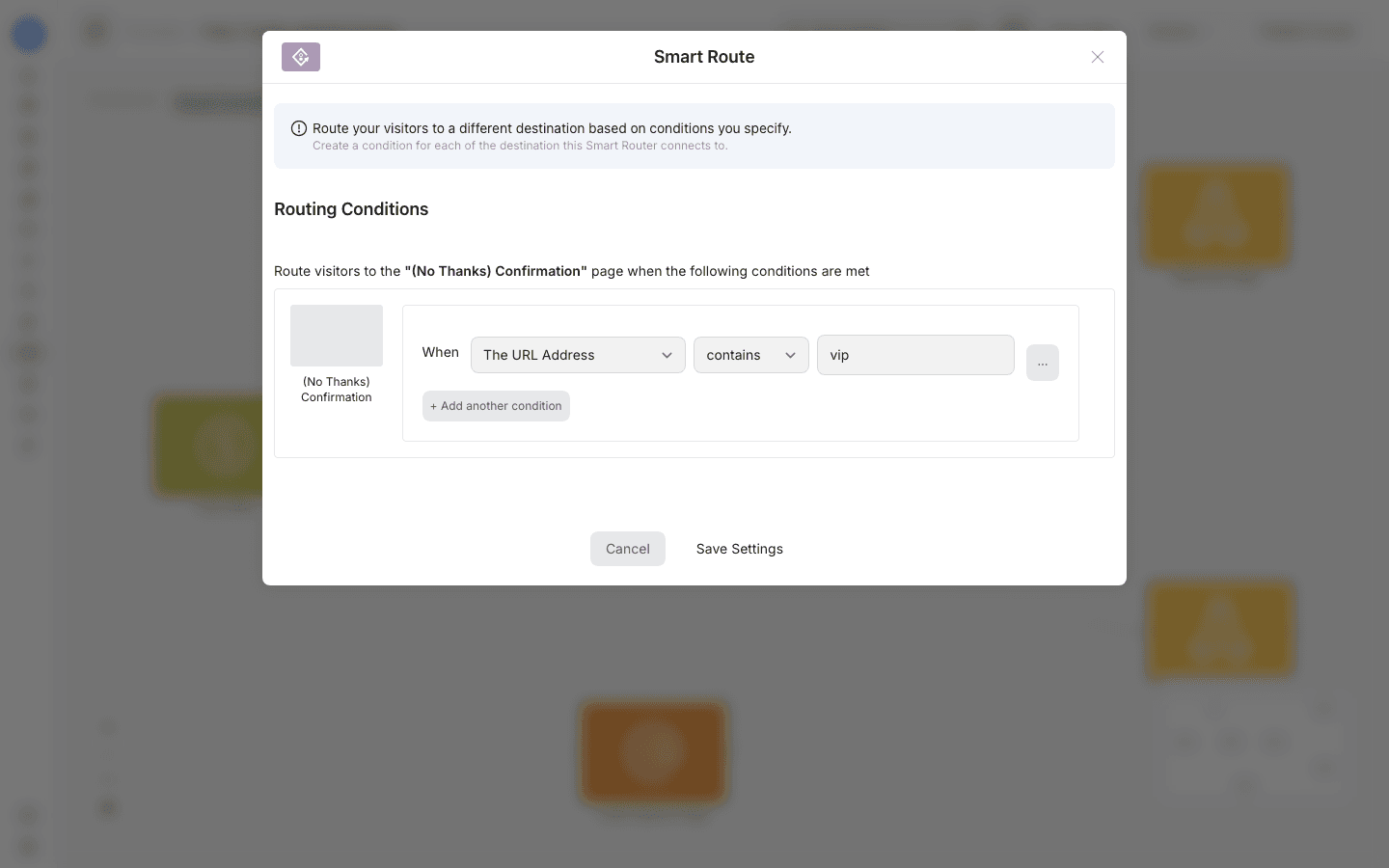
Rules are checked from top to bottom. The visitor goes to the first step whose rule fits. If no rule fits, they go to the first step you joined the Smart Route to, unless one step's rule is No other conditions are met (see below).
Rules you can use
The link they came from (The URL Address). Add a word to the end of the link you share, like ?from=vip. Then set the rule to The URL Address, contains, vip. You can also use begins with, ends with and does not contain.
How often they've visited. Use The # Page Visits, # Days Since First Visit or # Days Since Last Visit. Compare with > (more than), < (less than), = (exactly) or between. For example, The # Page Visits > 2 catches people who keep coming back. A visit is one sitting: pages someone opens less than 30 minutes apart count as one visit, and the visit they're on now counts. So a first-time visitor is on visit 1, and their # Days Since First Visit is 0. Days are whole days. The count lives in the visitor's browser, so a new browser or device starts again at 1.
The date. Use Current Date to send visitors somewhere else on certain days, like a sale page that ends on a set date. Pick a day, then compare with is, is less than (before that day), is greater than (after it) or between two days. The day is the visitor's own date, where they are.
What they typed in a form. The list also shows each field of the form on the page before the Smart Route, by its name (for example email or plan). Set the rule to that field, then is, contains, begins with or ends with, and the value. For example, plan is pro sends people who picked Pro to the Pro offer. The answer has to match exactly, capital letters included.
Everyone else (No other conditions are met). Pick No other conditions are met in one step's box. That step gets every visitor the other rules didn't catch, even if its box is listed first.
The list also offers The Visitor Tags. Tag rules don't sort visitors yet, because a live page doesn't know a visitor's tags. Use the rules above instead.
Make it live
Smart Route rules work only on a published funnel. Publish the funnel after you change them, and after you add or move lines. See Publish your funnel.
If you set up a Smart Route before November 23, 2026, publish the funnel again. A fix that day makes the live page check your rules properly. Publish again too if a rule uses the date, a form field, = on a number, or No other conditions are met. A later fix makes those rules work, and a live page picks it up only when you publish it again.
Need help?
Email support@launchos.com.