Build a funnel
Start a funnel from a template, find your way around it, and add pages.
A funnel is a set of pages a visitor moves through in order, like a sign-up page and then a thank-you page. This guide shows you how to start one from a template and where everything is once it's made.
Start a funnel from a template
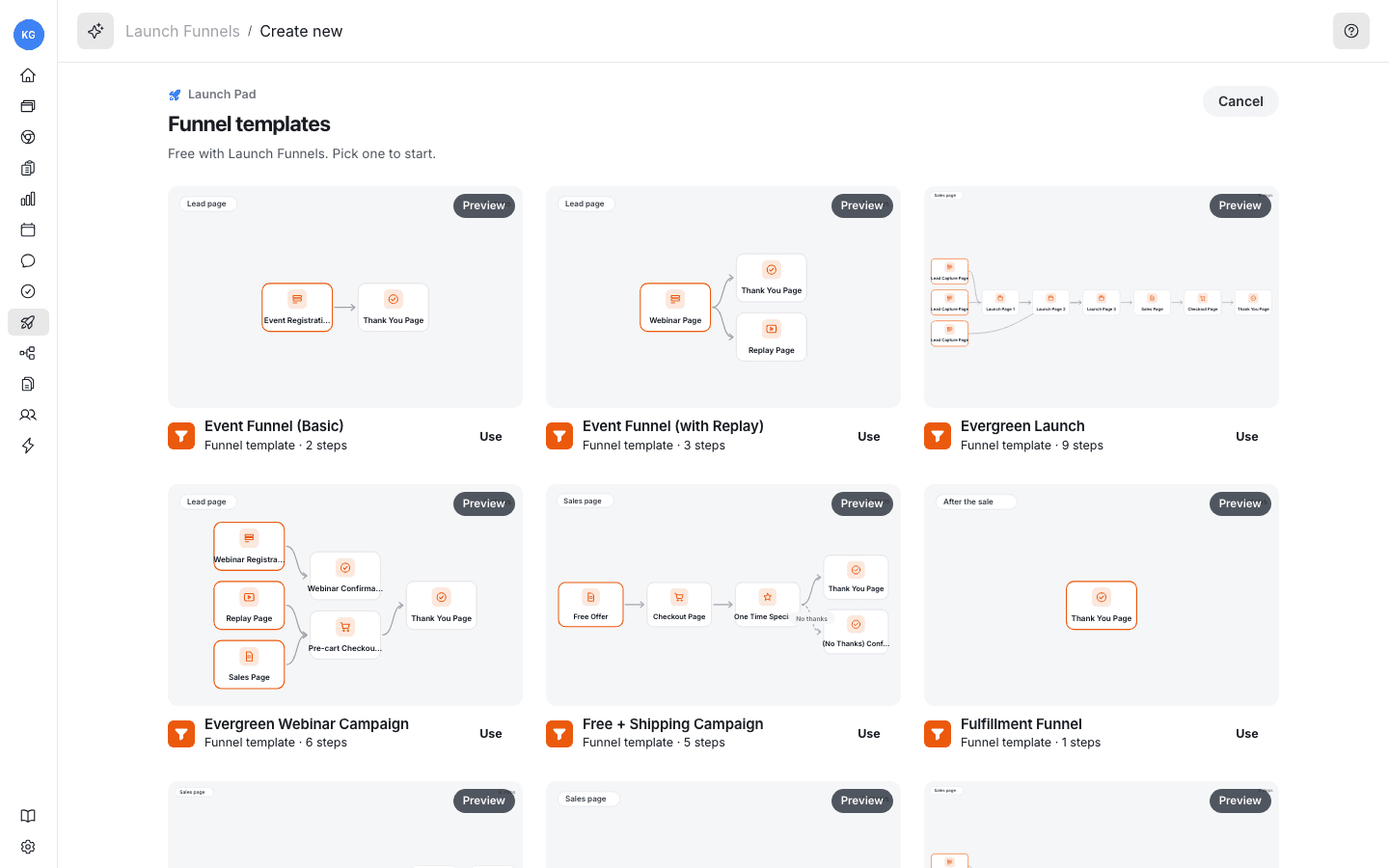
- Open Launch Funnels from the left menu. Your funnels show as cards.
- Click + Create a Funnel at the top right. Launch Pad opens with the Funnel templates.
- Each card draws the template's steps, so you can see the whole path. Click Preview for a closer look.
- Click Use on the one you want.
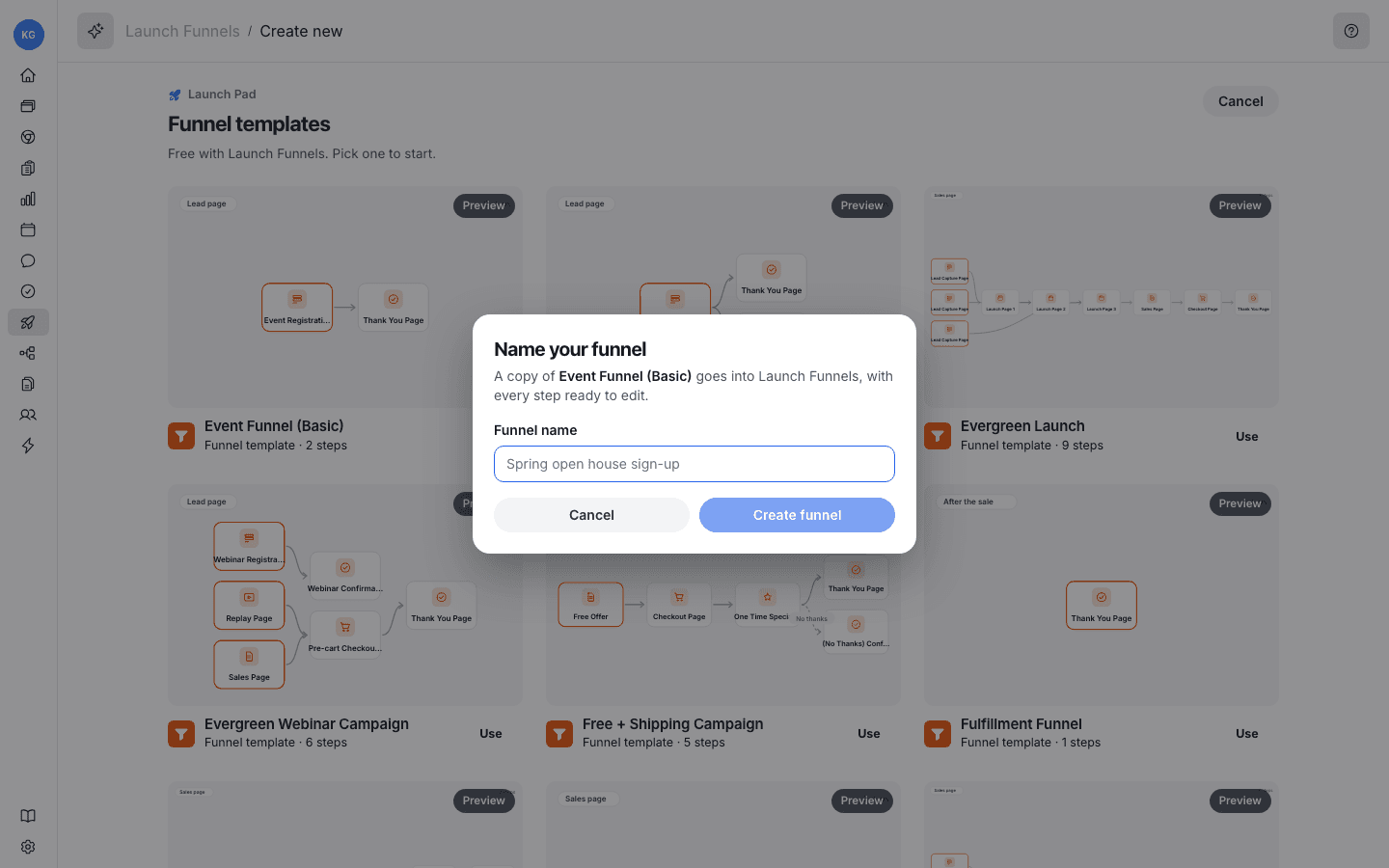
- Type a name under Funnel name and click Create funnel.
Your new funnel opens. Nothing is online yet. It goes live only when you publish it.
Find your way around a funnel
A funnel has four tabs at the top:
- Dashboard lists the Pages in this funnel, in order, with each page's web address. It also holds Launch Media, the pictures and files the funnel uses.
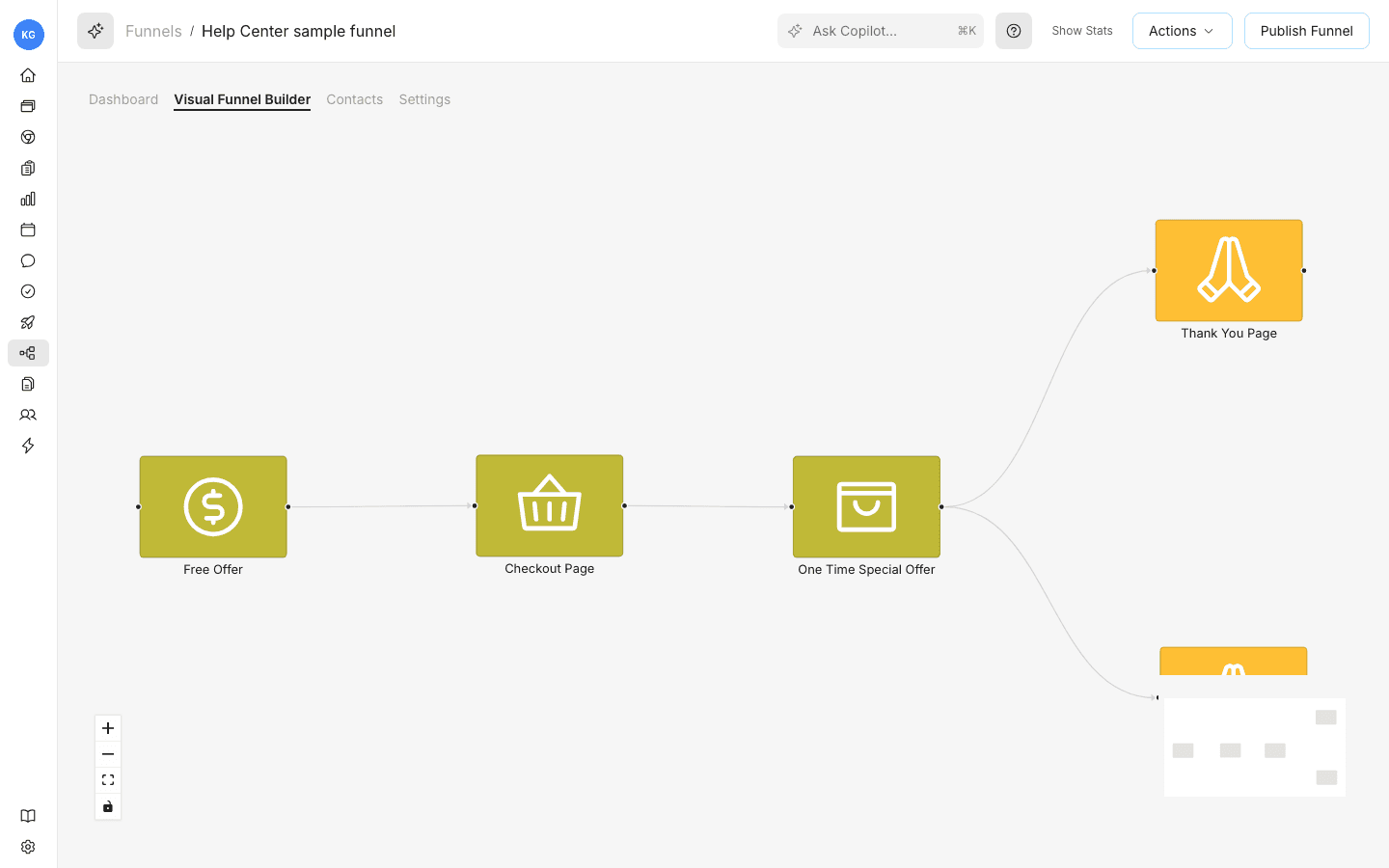
- Visual Funnel Builder shows the funnel as a map: one box per step, with lines showing where each step leads. See Add and connect steps on the map.
- Contacts lists the people who filled in a form in this funnel.
- Settings holds the funnel's name, its web address and its tracking codes.
Add a page from the Dashboard
- On the Dashboard, click + Add page.
- Pick a design and click Use.
- Name the page. It's added to this funnel.
To choose where the page sits in the path, add it on the map instead. See Add and connect steps on the map.
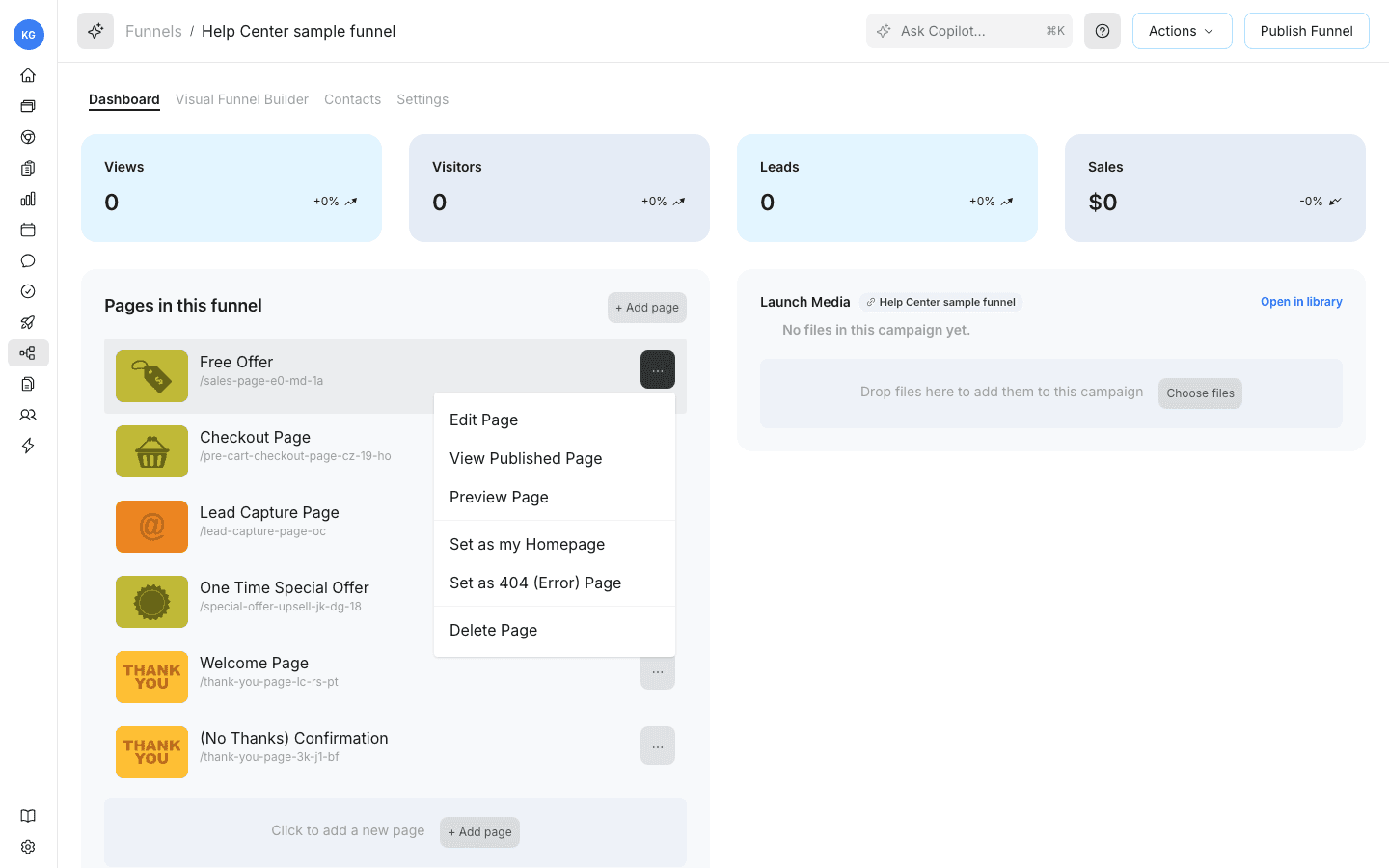
The page menu on the Dashboard
Click the … next to a page for these choices:
- Edit Page opens the page in the editor.
- View Published Page opens the live page.
- Preview Page shows the page before it goes live.
- Set as my Homepage makes this page what visitors see at your plain web address.
- Set as 404 (Error) Page shows this page when someone types a web address that doesn't exist.
- Delete Page removes the page.
A homepage or error page change reaches visitors only after you publish the funnel again.
Next steps
Need help?
Email support@launchos.com.