People: search, filter and page through your contacts
Find anyone with the search box, narrow the list with a filter, and move between pages.
Use the search box to find one person fast. Use a filter when you want a group, like everyone in one city.
Search
- Open People.
- Click the Search... box at the top right of the list.
- Type part of a name, email, phone number, company or address.
The list changes as you type. It shows every contact with what you typed anywhere in their details, and it starts again at page 1.
To see everyone again, clear the search box.
Filter the list
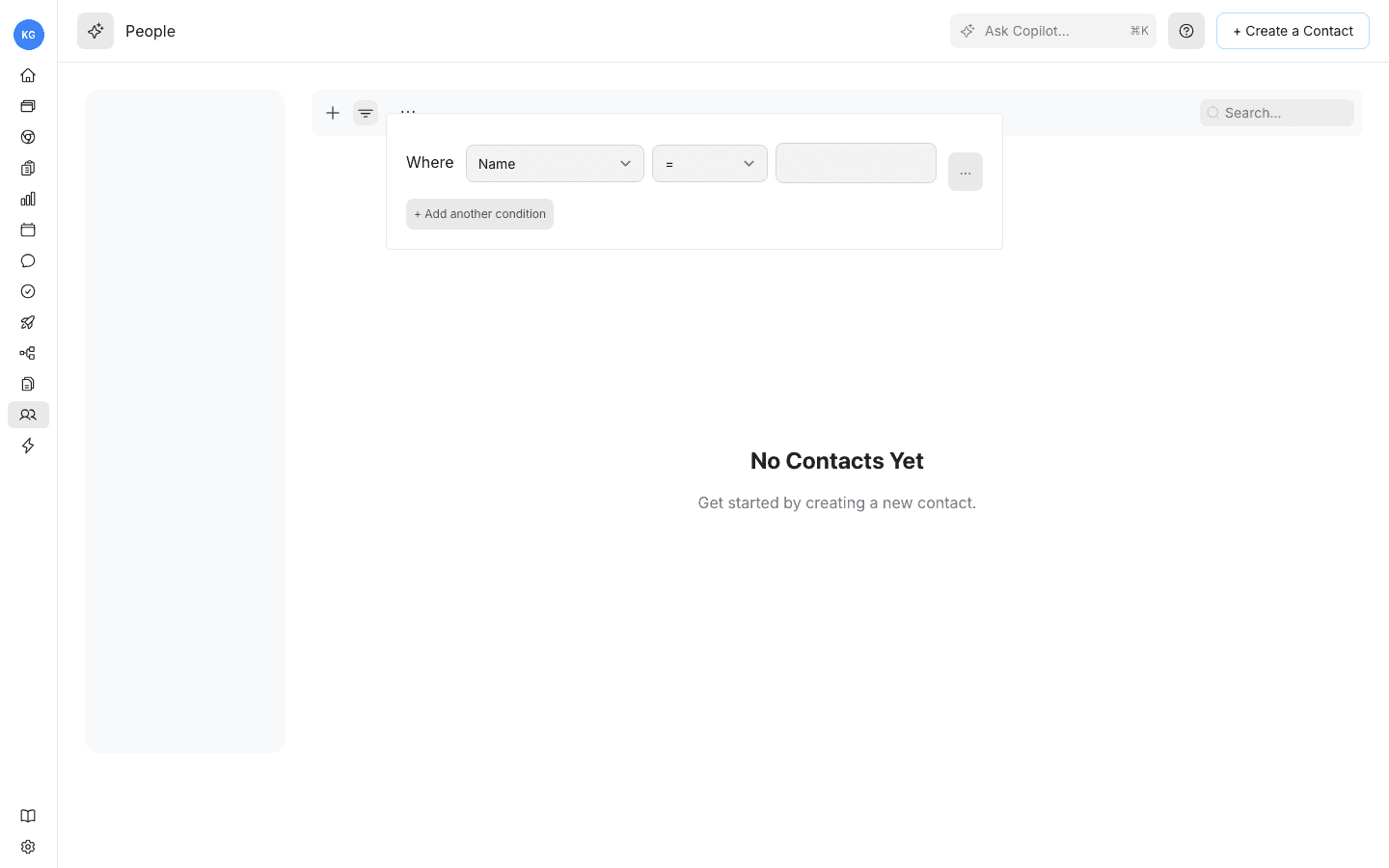
- Click the filter button above the list. It's the icon with three lines, next to +.
- Next to Where, pick a field, like City or Email.
- Pick how to match. For example, contains finds the words anywhere in the field, and = means "is exactly".
- Type what you're looking for. The list changes as you type.
- To add another rule, click + Add another condition. A contact must match every rule to show up.
A filter isn't saved. When you leave People, it's cleared.
You can search and filter at the same time. The list shows contacts that match both.
Page through the list
People shows 10 contacts at a time, oldest first, in the order they came in. Changing a contact doesn't move it, so every contact shows up once as you page through. When you have more than 10, buttons show up under the list:
- First and Last jump to the first or last page.
- Prev and Next move one page back or forward.
- A page number jumps straight to that page.
Download what you see
To download your contacts as a spreadsheet, click the ... button above the list, then Export Contacts. If a filter is on, you get only the contacts that match it. See Import and export contacts.
Need help?
Email support@launchos.com.