People: add and find contacts
Add a contact yourself, open one to change it, delete one, and find anyone fast.
People is your contact list. This page shows you how to add someone by hand, change their details, remove them, and find them again.
You don't need to type most contacts in. When someone fills in a form you built in Launch Pages or Launch Funnels, they're added to People on their own. (Forms inside HTML pages you upload to Launch Sites don't do this yet.) See How form leads land in your contacts.
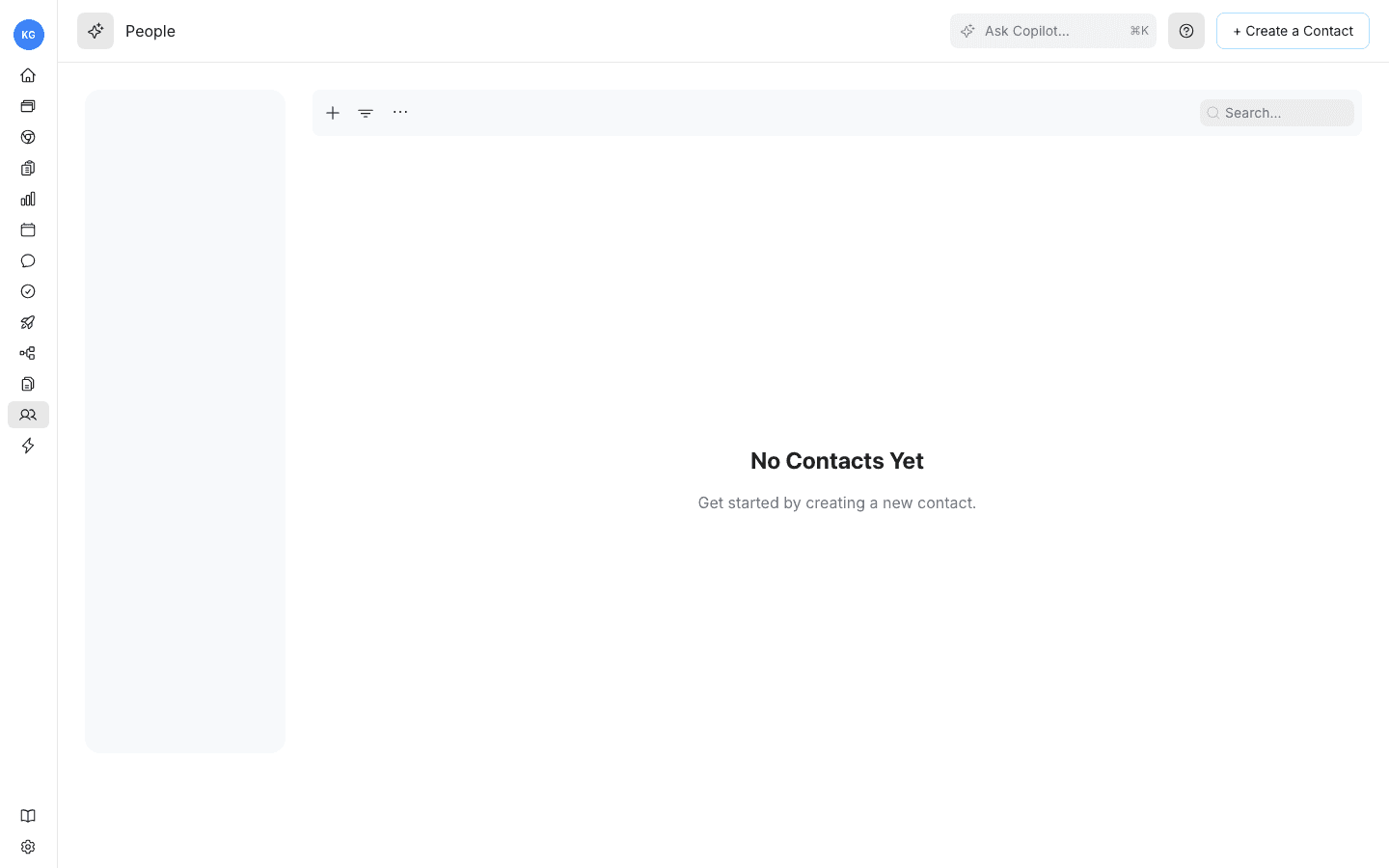
Add a contact yourself
- Open People from the left menu. It's the icon with two people.
- Click + Create a Contact at the top right. The + button above the list does the same thing.
- The new contact opens. It's called "New Contact" until you change it.
- Type their first name, last name, email, phone and address under Contact Information.
Your changes save as you type. There's no Save button.
Open a contact and change it
- Click a contact in the list, or click its Open button.
- Change any field under Contact Information. It saves as you type.
- To go back to the list, click People at the top of the screen.
Delete a contact
- In the list, click Delete on the contact.
- Click OK to confirm.
The contact is gone for good. There's no undo.
Find a contact
Type a name, email or phone number in the Search... box above the list. You can also filter the list or page through it. See Search, filter and page through your contacts.
Bring in a list you already have
Click the ... button above the list, then Import Contacts. See Import and export contacts for the steps.
Need help?
Email support@launchos.com.