People: import and export contacts
Bring in a list of contacts from a CSV file, or download your contacts as one.
A CSV file is a plain spreadsheet file. Excel, Google Sheets and Numbers can all open and save one.
Import contacts
-
Open People.
-
Click the ... button above the list, then Import Contacts.
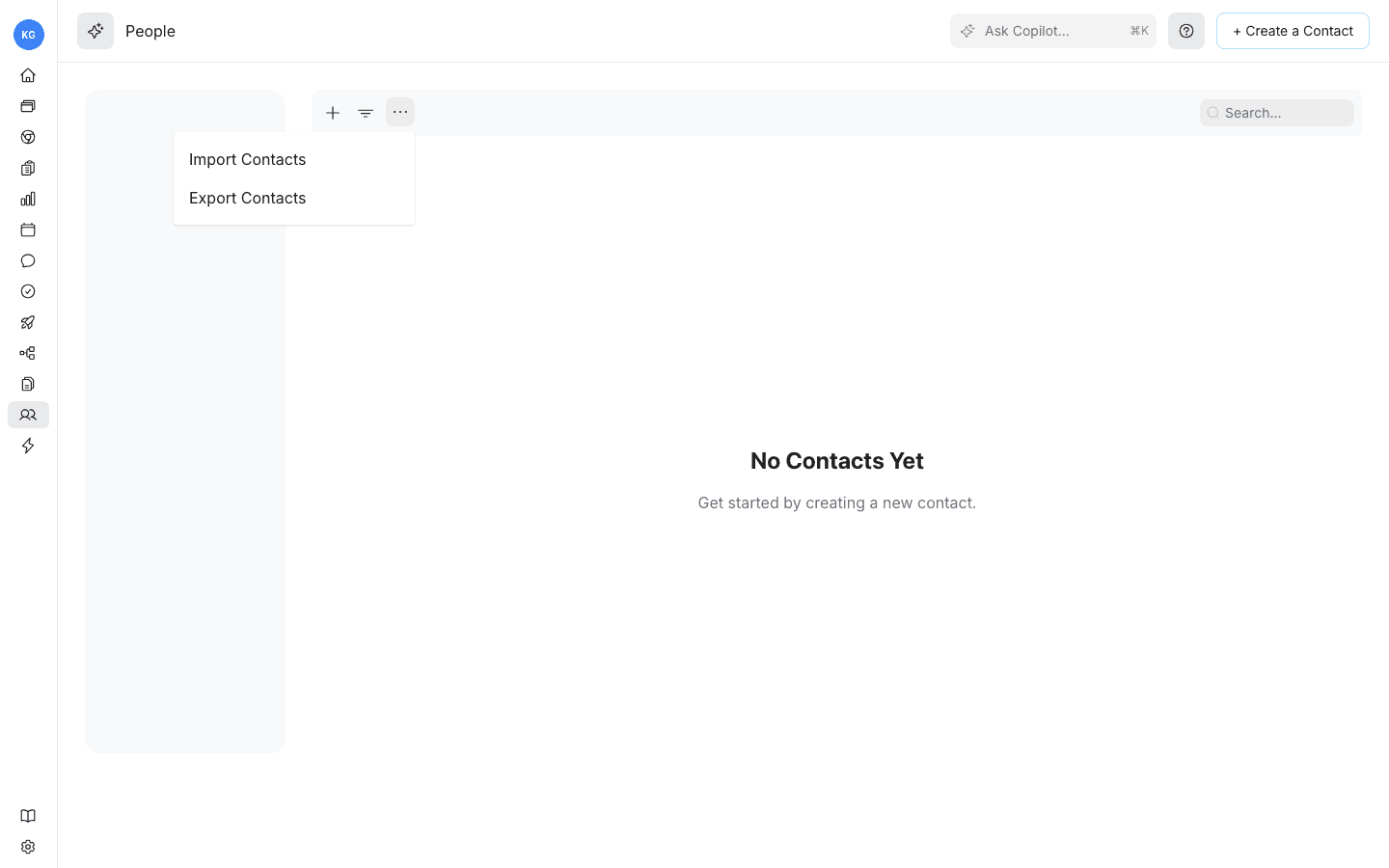
-
Choose your CSV file. The first row should be the column names, like "First Name" and "Email".
-
Check the first few rows. Under each column name, pick the contact field it goes into. We match the obvious ones for you. Pick Don't import for any column you want to leave out. One column must go into Email, or you can't go on.
-
Click the import button. It shows how many contacts are in your file, like Import 250 contacts.
-
When it's done, you see how many contacts were added, updated and skipped, and why each skipped row was skipped. Click Done.
What to know
- Every contact needs an email. Rows with no email, or an email that isn't valid, are skipped.
- Contacts you already have are safe. If a contact with the same email is already in People, we only fill in the fields that are blank there. We never overwrite what you already have.
- One contact per email. If the same email is in your file twice, we use the first row and skip the other.
- Up to 10,000 contacts at a time. For a bigger list, split it into smaller files and import each one.
Export contacts
- Open People.
- If you only want some contacts, use the filter first. The export follows the filter, not the search box. See Search, filter and page through your contacts.
- Click the ... button above the list, then Export Contacts.
Your browser downloads a CSV file with one row per contact, up to 50,000 contacts. It has the standard fields (name, email, phone, address, notes and the date added) and any extra fields your forms collected.
Need help?
Email support@launchos.com.