Share something with your team, or by link
Give teammates access to your work, or turn on a link anyone can open.
What you make in Launch OS is private until you share it. When you're ready, the Share button lets you pick teammates, share with your whole team at once, or turn on a link for people outside your team.
The share window looks the same in every app that has it. The steps below use a file in Launch Media as the example.
Open the share window
Open the thing you want to share and click Share. In Launch Media, click a file, then click Share under Sharing.
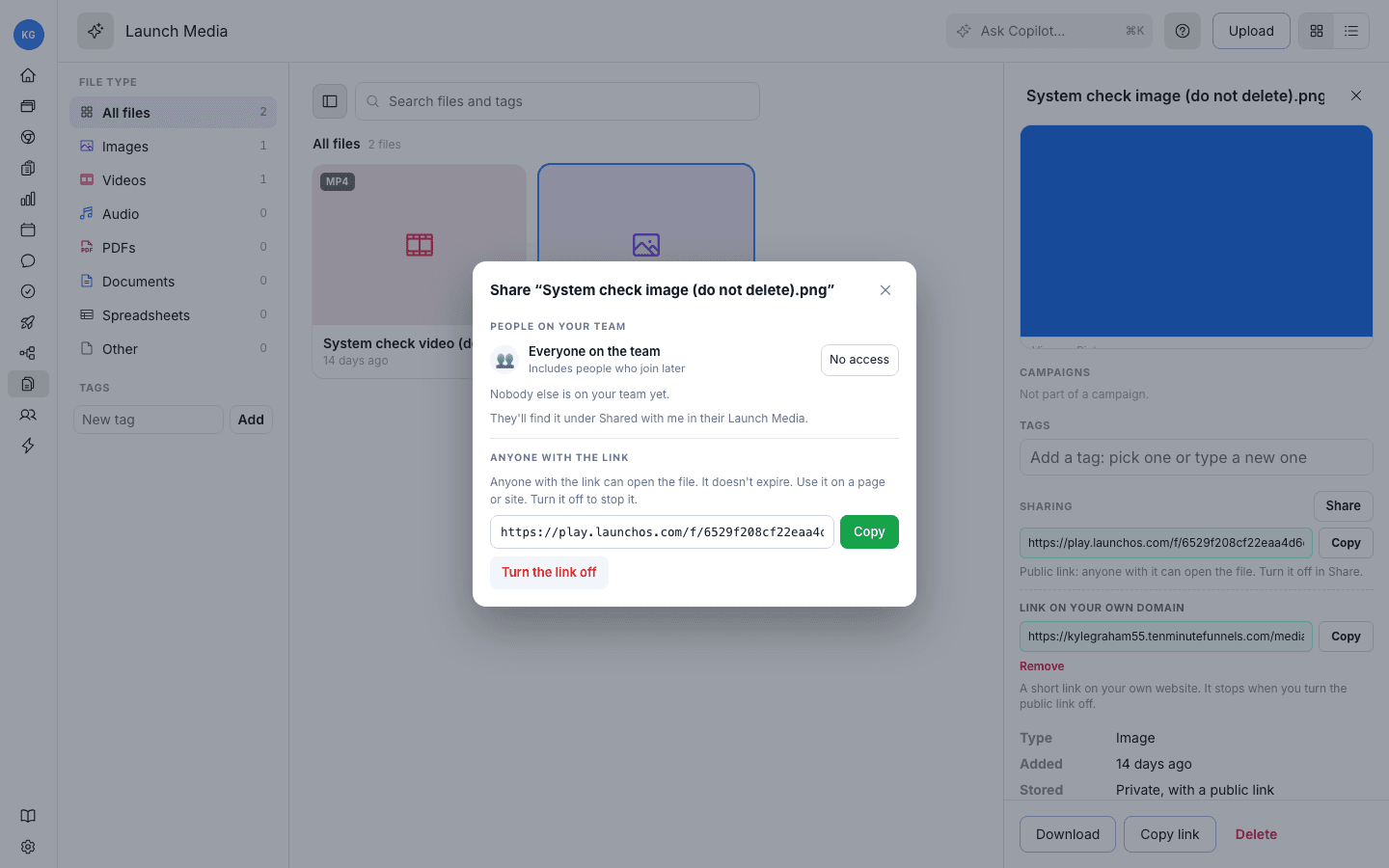
The window has two parts: People on your team and Anyone with the link. Every change saves right away. There's no save button.
Share with teammates
- Click + Add a teammate… and pick a name from your team list.
- Choose what they can do, if the window offers a choice. See Who can see, share and approve for what each level means.
- That's it. They get an email saying you shared it with them.
To change someone's level, pick a new one next to their name. To take someone off, click the ✕ next to their name.
Don't see a teammate's name? They need to be on your team first. Add them in Settings, then Team, with Invite Member.
If Launch OS couldn't email someone, the window says so. Copy the link and send it to them yourself.
Share with everyone on the team
Next to Everyone on the team, change No access to a level. Everyone on your team gets it, including people who join later.
To stop sharing with the whole team, set it back to No access.
Share with people outside your team
Under Anyone with the link, click Turn on the link and copy it. The link is copied, ready to paste. Anyone who has it can open the item without signing in.
The link doesn't expire. To stop it working, click Turn the link off.
Find what others shared with you
Things your teammates share with you show up under Shared with me in the app they came from. In Launch Media, Shared with me appears in the left list once someone has shared a file with you.