Who can see, share and approve
What each access level means, and who on your team is allowed to share.
This page explains who can see your work in Launch OS, who can share it, and who has the final say.
Private until you share it
Anything new you make belongs to you. Nobody else on your team sees it until you share it.
This is enforced by Launch OS itself, not just hidden on the screen. Someone who isn't on the share list can't open the item, even with a direct address. The only way in without being on the list is a link you turned on under Anyone with the link.
The access levels
When you share with a teammate, you pick what they can do. Not every item offers every level. A Launch Media file, for example, can only be shared to view.
| Level | What they can do |
|---|---|
| Can view | Open it and look. For a file, they can also download it. |
| Can comment | Everything above, plus leave comments. |
| Can review | Everything above, plus approve it or ask for changes. |
Every comment shows who wrote it and when. Only the writer can change or delete their own comment.
Who has the final say
The owner of an item has the final say. They approve it or ask for changes. People given Can review can also approve or ask for changes. Everyone else can comment.
Who can share
Not everyone on your team can share. These people can:
- The account owner. They can always share.
- Team managers.
- Anyone a Team manager gives the Can share permission.
Someone you shared an item with can't share it onward, unless they're also allowed to share.
Give someone the Can share permission
You need to be the account owner or a Team manager to do this.
- Click the gear icon at the bottom of the left menu to open Settings.
- Click the Team tab.
- Next to the person's name, tick Can share. Or change their role to Team manager. Team managers can always share.
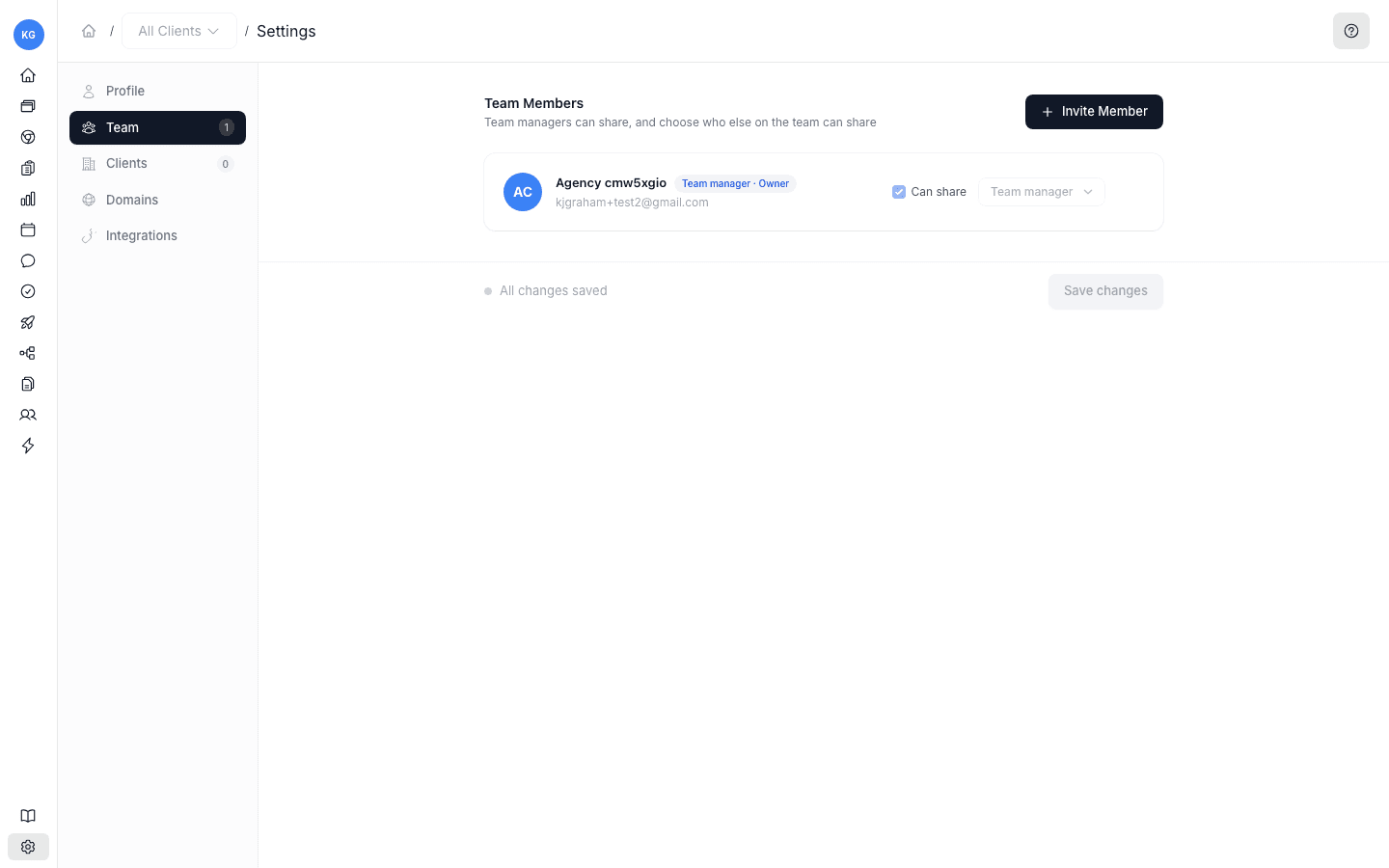
The account owner is always a Team manager. That can't be changed.