Upload, organize, find and share your files
Keep your pictures, videos and documents in one private library, and share them when you choose.
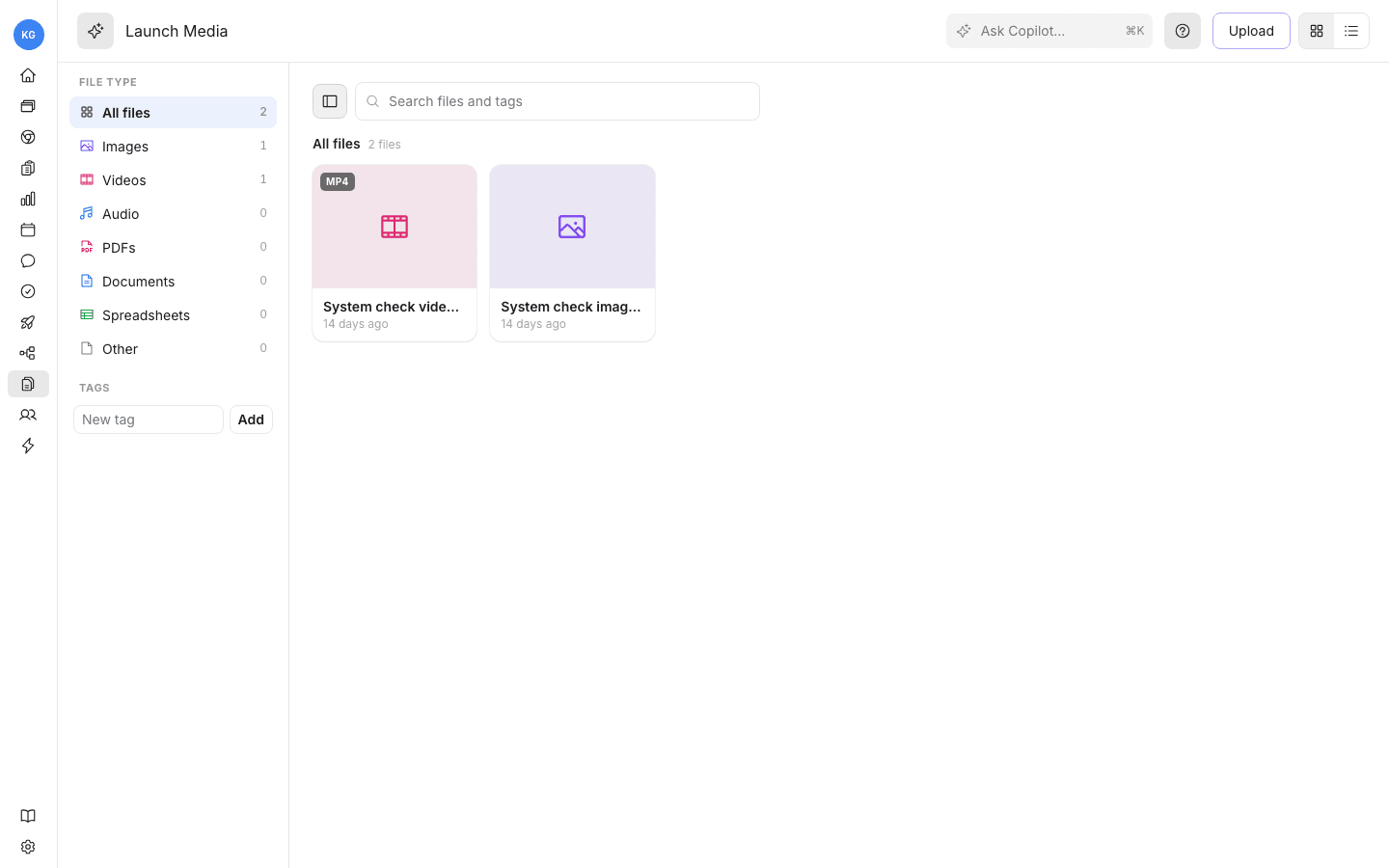
Launch Media is the library for your account's files: pictures, videos, audio, PDFs and documents. Your files are private to your account until you share them.
Open it from the left menu.
Upload files
Drag files from your computer onto the library. You can drop several at once. Or click Upload at the top right and pick them.
Each file shows its progress while it uploads. If one fails, it says why. Click Dismiss to clear it and try again.
See your files
Every file shows as a card with a preview. To see them as a list instead, click the list button at the top right. Click the grid button to switch back.
Click a file to open its details on the right. You see a preview, its tags, how it's shared, its type and when it was added.
Find a file
- Search. Type in Search files and tags. It finds file names and tags.
- Filter by type. Click Images, Videos, Audio, PDFs, Documents, Spreadsheets or Other in the left list. Click All files to see everything again.
- Filter by tag or campaign. Click a tag or a campaign in the left list.
To hide the left list and make more room, click the button next to the search box.
Organize with tags
Tags are labels you add to files, like "logos" or "spring sale." A file can have as many as you like.
- Tag a file. Click the file. Under Tags, pick a tag or type a new one.
- Remove a tag from a file. Click the ✕ on the tag.
- Make a tag before you need it. Type it in New tag in the left list and click Add.
- Rename a tag everywhere. Click the pencil next to it in the left list.
- Delete a tag. Click the bin next to it, then click again to confirm. Your files stay. Only the tag goes.
Files used in a campaign are tagged with that campaign on their own. Those tags follow the campaign's name.
Rename, download or delete a file
Click the file to open its details, then:
- Rename it. Click its name at the top, type the new name, and press Enter.
- Download it. Click Download.
- Delete it. Click Delete, then Tap again to delete. This can't be undone.
Share a file
Your files are private to your account. To let someone else see one, you have three choices:
- A quick link for one person. Click Copy link. The link works for 7 days, then stops.
- A teammate. Click Share under Sharing and add them. They find it under Shared with me in their Launch Media.
- A lasting public link. Click Share, then Turn on the link and copy it. Anyone with the link can open the file, and it doesn't expire. Use this for a picture or video on a page or site. To stop it, click Share, then Turn the link off.
While the public link is on, you can also give the file a short address on your own domain, if you've connected one. Under Link on your own domain, pick the domain, type a name, and click Save link.
For more on the share window, see Share something with your team, or by link.