Put a video on a page
Upload a video to Launch Media and show it on your page with a player that works well on every screen.
Launch Media gives each video its own player. It plays the right quality for each viewer, on phones, slow connections and big screens. You copy one piece of code from Launch Media and paste it into your page.
1. Upload the video
Open Launch Media from the left menu and drag your video onto the library, or click Upload.
2. Turn on the video's public link
A page is open to everyone, so the video needs a public link.
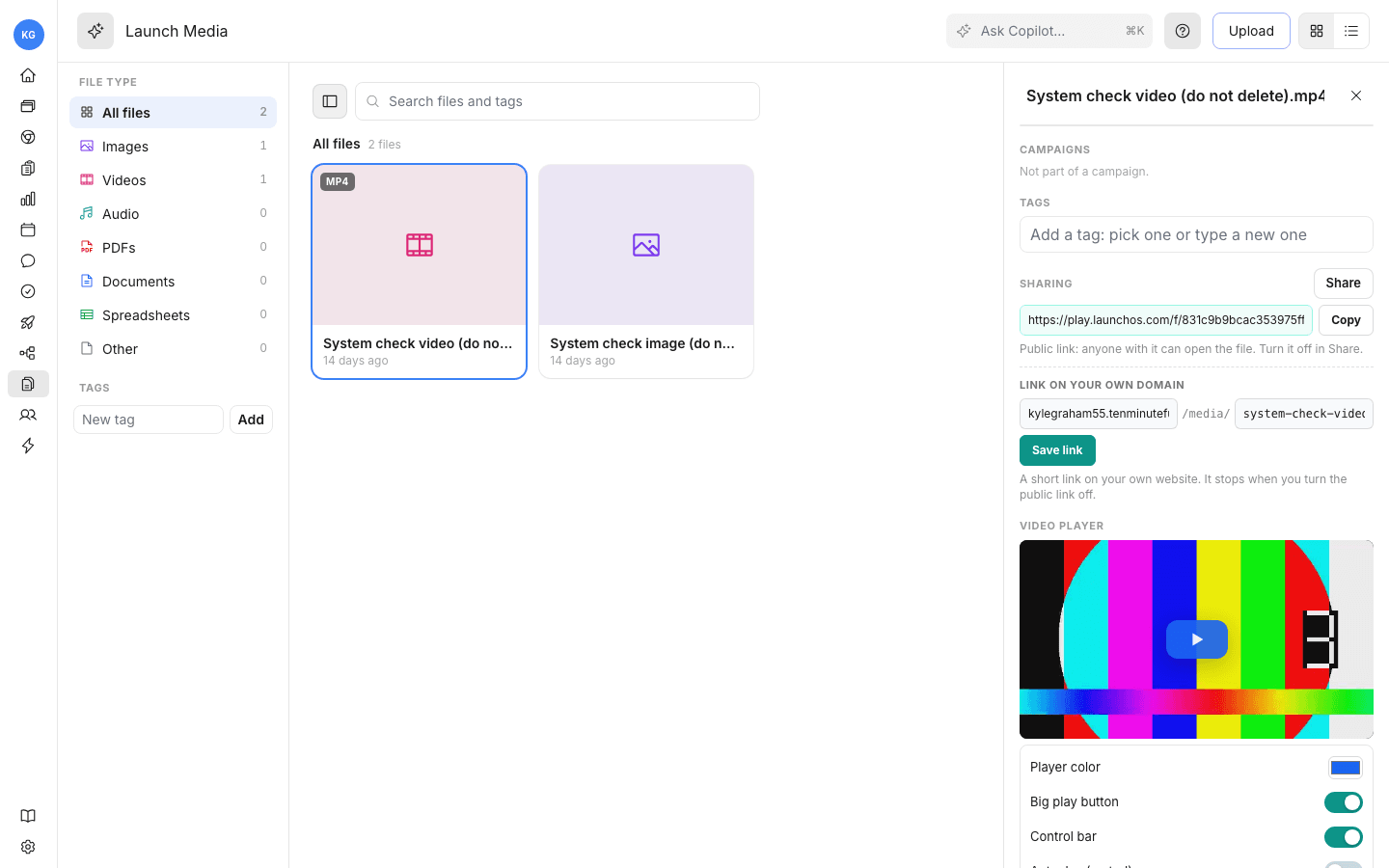
- Click the video to open its details.
- Under Sharing, click Share.
- Under Anyone with the link, click Turn on the link and copy it.
- Close the share window.
Launch OS starts getting the video ready. It says Getting your video ready… while it makes versions for each kind of screen. This usually takes a few minutes, and you can leave the page.
3. Set up the player
Under Video player you see a preview and these choices. Each one saves as you change it.
- Player color
- Big play button
- Control bar
- Autoplay (muted): the video starts on its own, with the sound off.
- Loop: the video starts again when it ends.
- Poster: the picture shown before the video plays. Pick A frame from the video, or one of your pictures in Launch Media.
4. Copy the embed code
Under Embed code, click Copy embed code. The embed code is a short piece of text that puts the player on a page.
You can copy it before the video is ready. Until then, the player shows "Getting this video ready…" and then plays by itself.
5. Paste it into your page
- Open your page in the editor.
- Add an HTML block where you want the video.
- Paste the embed code into it.
- Publish the page, then open its web address to check the video plays.
Just want to send the video to someone?
Under Share link, click Copy share link. It opens a page with only the video and its player.
If the video won't get ready
If Launch Media says We couldn't prepare this video, click Try again. If it fails twice, the file may not be a video we can read. Try saving it as an MP4 and uploading it again.