Connect, reconnect or disconnect an email tool
Link your email marketing tool to Launch OS so your new leads go straight into it.
Launch OS works with the email marketing tools many businesses already use, like Mailchimp, ActiveCampaign, Kit, Drip, GetResponse, iContact and Ontraport. Connect yours once, and your funnels can send new leads and sales to it.
To connect a tool, you need its key: a long code you copy from your email tool's own settings. It lets Launch OS add contacts to your list.
Open your connections
- Click the gear icon at the bottom of the left menu to open Settings.
- Click the Integrations tab. You see My Integrations, a list of every tool you can connect.
Connect a tool
- Find your tool in the list and click its switch.
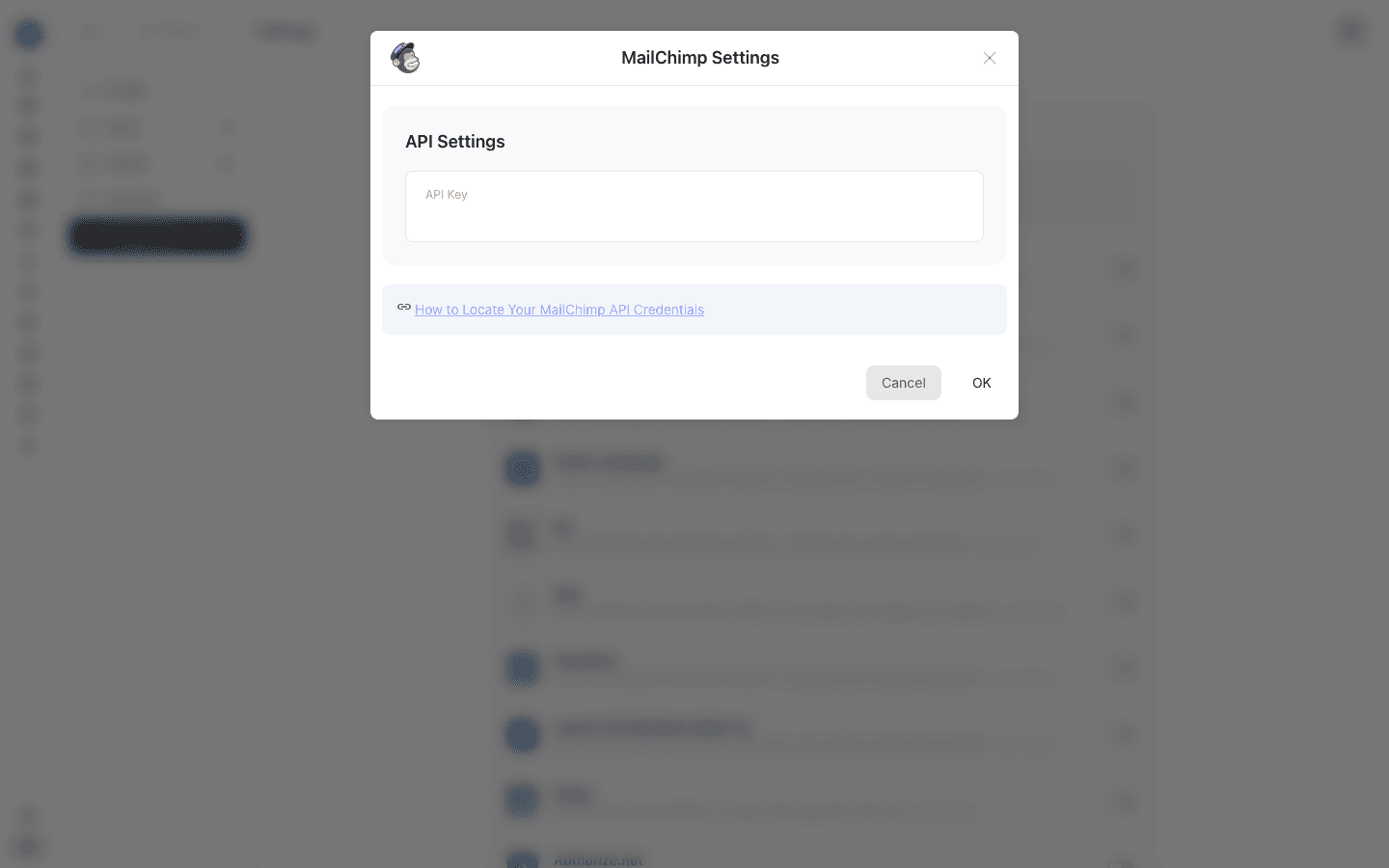
- A window opens with the tool's name, like MailChimp Settings. Paste your key into the box. Some tools ask for one more thing, like an account name or ID.
- Not sure where to find the key? Click the link at the bottom of the window. It opens your tool's own help page on finding it.
- Click OK.
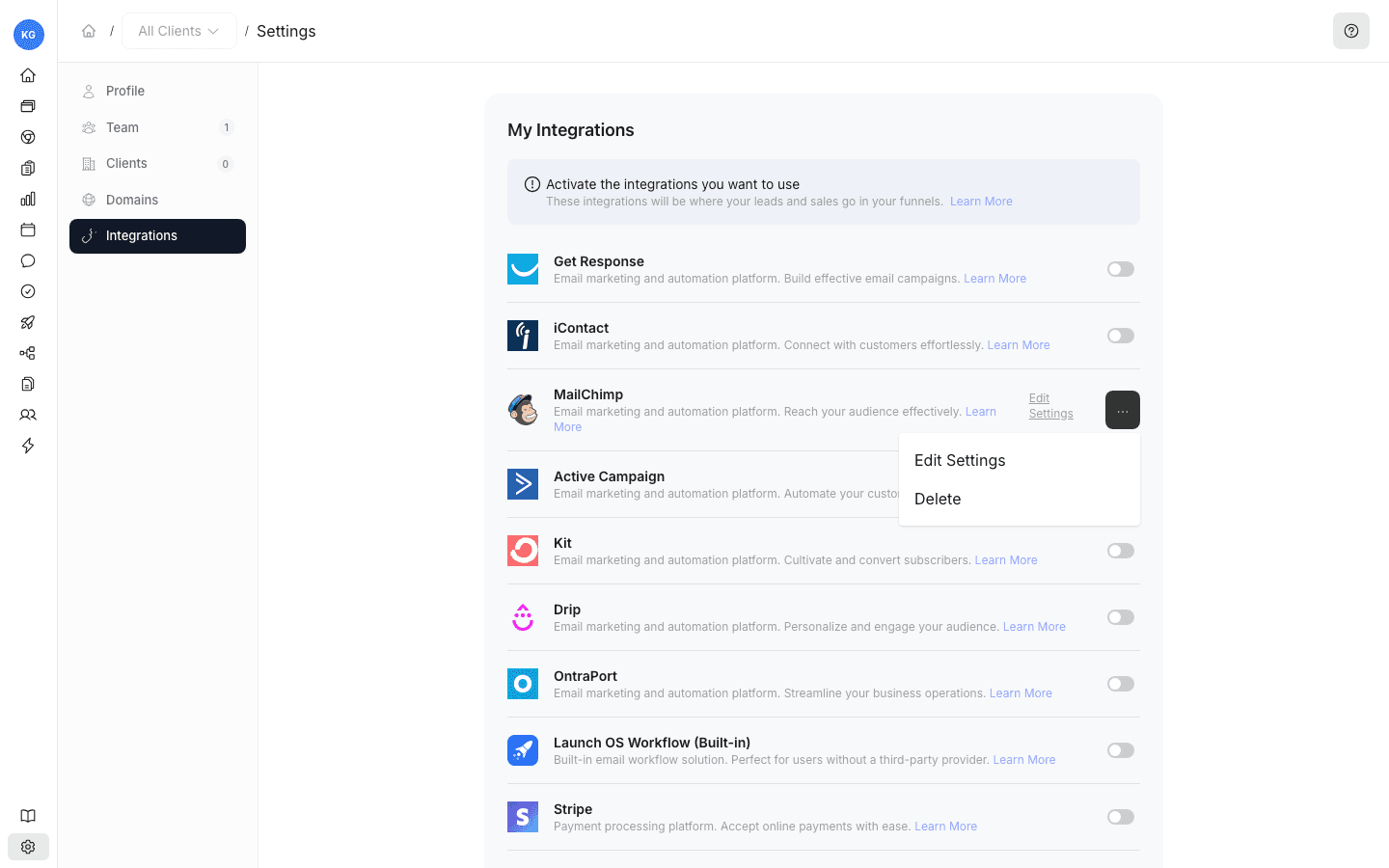
The tool now shows Edit Settings and a … button instead of a switch. That means it's connected.
Launch OS saves the key as you typed it. It doesn't test it with your email tool. If leads don't show up in your list, check that you copied the whole key.
Reconnect a tool (change its key)
Do this if you made a new key in your email tool, or the old one stopped working.
- Click the … button next to the tool.
- Choose Edit Settings.
- The key box says "Saved. Type a new key to replace it." Paste the new key. To keep the saved key, leave the box empty.
- Click OK.
Disconnect a tool
- Click the … button next to the tool.
- Choose Delete.
- Click OK to confirm.
Anything that sent leads to this tool stops sending them. Your contacts already in the email tool stay there.
Need help?
Email support@launchos.com and tell us which tool you use.